
v2.0.0 — Release Notes
Release Date: October 2026
Smarter Risk Intelligence, Richer Evaluation Insights, and Expanded Access Control
Section titled “Smarter Risk Intelligence, Richer Evaluation Insights, and Expanded Access Control”Pacific AI 2.0.0 is a major release that significantly expands the platform’s risk intelligence, evaluation, and governance capabilities. This release introduces Delta SRA, enabling AI-powered incremental risk assessments that keep governance documentation current as systems evolve, without overwriting prior human review and risks.
Evaluation workflows receive major upgrades in this release, including richer result visualizations (tables, charts, and heatmaps), the ability to export test run results, rerunning failed runs, and a new Overall Leaderboard that compares benchmark results across all systems in the organization. Test Suites now display the custom dataset being used directly on the page, and the Datasets page has been enhanced with additional columns so users no longer need to open a dataset to see key details.
To support proactive AI oversight, Alerts and Notifications are now fully integrated with the monitoring workflow, allowing teams to define threshold-based alert rules and review the resulting notifications from a dedicated page. The MCP integration has also been extended to include read-only access to monitoring, alerts, and notifications.
On the access control side, this release introduces the Auditor role, a new read-only organization-level role that provides broad visibility across Pacific AI without modification rights and extends the Member role to allow system-level read-only access. The Judge LLM can now be configured directly from the UI. New users are also prompted to update their password on first login, and meaningful error messages are now shown when an evaluation fails.
New Features
Section titled “New Features”Delta SRA
Section titled “Delta SRA”A Delta Risk Assessment (Delta SRA) automatically updates an existing Risk Assessment when system documents or organizational policies change. Instead of regenerating the entire Risk Registry from scratch, Delta SRA analyzes only the relevant changes and applies targeted updates, preserving manually reviewed risks, edits, and mitigations.
What’s new in this release:
- Document level change detection: Pacific AI compares a new document version with the previous version and analyzes only the changed sections.
- Policy driven reassessment: When an organizational policy changes(Activated or Deprecated), affected systems are automatically queued for background reassessment.
- Processing status display: The Delta SRA status (Queued, In Progress, Completed, Failed) is shown on the System Risk page.
- Risk Change History: A traceable history of both manual and automatic risk changes is maintained for each system.
- SRA Change Summary: An easy to understand plain language summary is generated after each full or delta assessment, explaining what changed and why.
For complete details, see the System Risk Assessment page.
Alerts and Notifications
Section titled “Alerts and Notifications”Pacific AI now includes a full Alerts and Notifications system integrated with the Guardian monitoring workflow.
What’s new in this release:
- Alert Rules: Define threshold based rules per monitor and sub-category, with configurable severity, streak requirements, and re-notification behavior.
- Notifications page: A dedicated page lists all notification events generated when alert conditions are met. Notifications can be Acknowledged or Resolved.
- Baseline support: A past monitoring run can be designated as a baseline; its scores automatically become the thresholds for associated alert rules.
- Flexible configuration: Alert rules support both “All sub-categories” and “Selected sub-categories” modes, with per-sub-category severity overrides and direction (
<or>) settings.
For complete details, including how alerts are evaluated and a troubleshooting guide, see Monitoring, Alerts, and Notifications.
Overall Leaderboard
Section titled “Overall Leaderboard”A new Leaderboard page, accessible from the top-level navigation, provides a cross-system view of benchmark results across all Pacific AI systems a user is authorized to access.
What’s new in this release:
- Compare up to four test runs across different systems, models, and model versions without re-running evaluations.
- Table and Chart comparison views for side-by-side analysis.
- Export comparison results in JSON or CSV format.
- Access control is enforced by displaying only test runs from systems the user has permission to access.
The existing system-level leaderboard under Gatekeeper continues to show evaluation results for the active system. The new Overall Leaderboard provides the cross-system view.
For complete details, see the Leaderboard page.
Auditor Role
Section titled “Auditor Role”A new Auditor organization-level role is available.
What’s new in this release:
- The Auditor role provides read-only access across the entire Pacific AI application, including systems, governance information, policies, vendors, documents, evaluations, monitoring results, and other available data.
- Auditors cannot create, edit, delete, approve, or modify any information.
- This role is intended for compliance reviewers and external auditors who need visibility without modification rights.
For a full description of all roles and their permissions, see User & Roles.
Configure Judge LLM from the UI
Section titled “Configure Judge LLM from the UI”The Judge LLM, the model Pacific AI uses to evaluate and score Test Suite results, can now be configured directly from the Endpoints page in Settings.
What’s new in this release:
- Users can configure a supported JSL or Pacific AI model as the Judge LLM.
- If no Judge LLM is configured, Pacific AI continues to use the default Judge LLM.
- Once configured, the Judge LLM can be updated or cleared, but cannot be deleted from the Endpoints page.
- Supported deployment environments include Amazon SageMaker, Azure OpenAI, OpenAI, and other supported platforms.
For configuration instructions, see the Endpoints page.
Improvements
Section titled “Improvements”Document Versioning
Section titled “Document Versioning”Document management has been enhanced with a versioned document tree.
What changed:
- Uploading a new version of document file now keeps it within the same document’s version tree rather than creating a separate document entry.
- The Versions column shows all available versions, with the most recent marked Latest.
- Users can expand the version tree to access earlier versions directly without scrolling through the full document list.
- Individual versions can be downloaded independently.
For full details, see the System Documents page.
Test Results: Table, Chart, and Heatmap Views
Section titled “Test Results: Table, Chart, and Heatmap Views”Evaluation and monitoring results can now be viewed in three different formats.
What changed:
- Test Suite results can be viewed as a Table, Chart, or Heatmap, in addition to the existing comparison view.
- Monitoring results support Table, Charts, Heatmap, and a Metric Score Trend view.
- These views help users identify performance changes, compare across categories, and spot trends over time.
For details, see Test Suites & Leaderboard and Monitoring, Alerts, and Notifications.
Custom Dataset Displayed in Test Suite
Section titled “Custom Dataset Displayed in Test Suite”When a Test Suite uses a custom dataset, the dataset is now displayed directly on the Test Suite page.
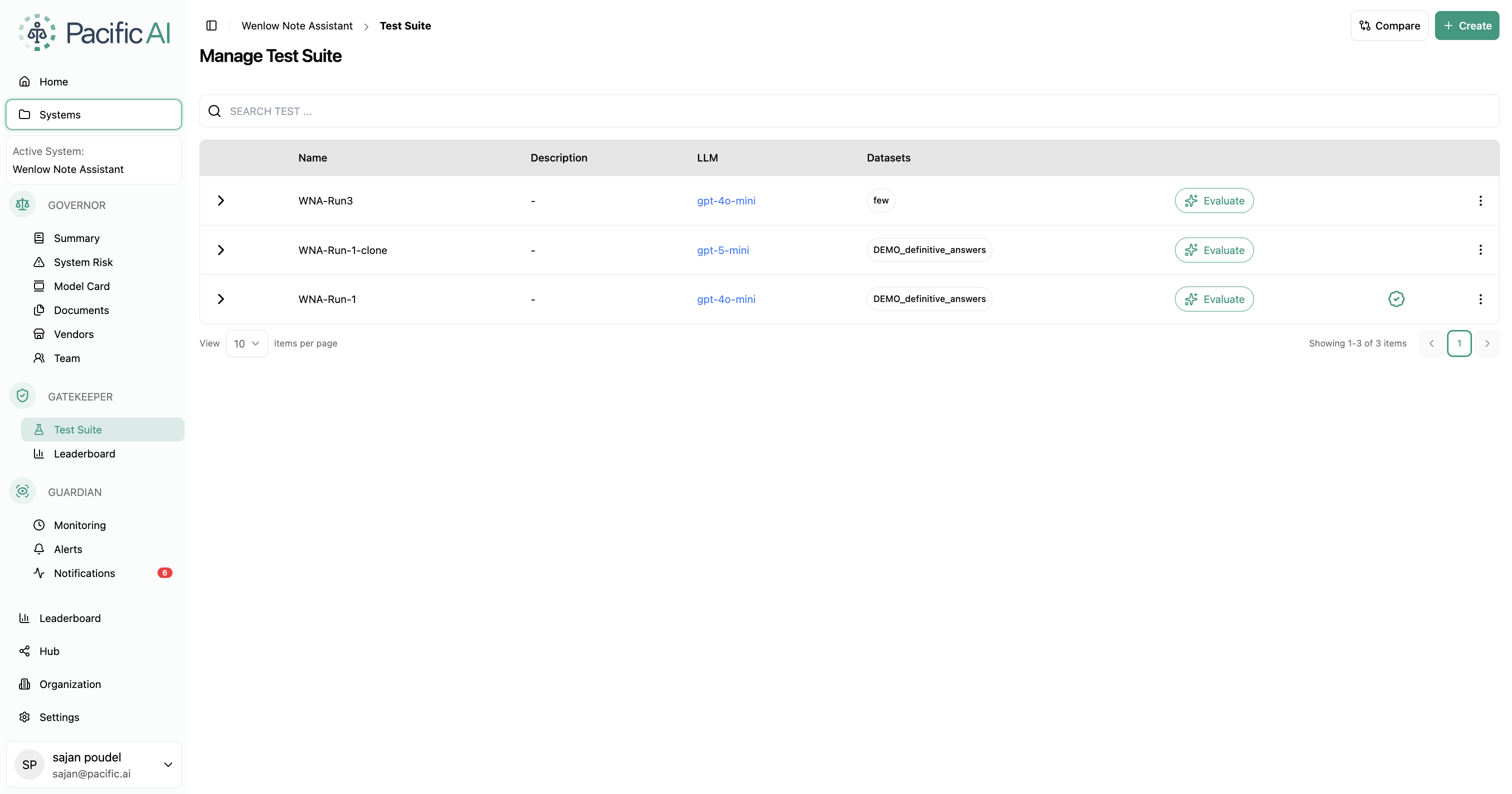
What changed:
- Users no longer need to open the Test Suite configuration to identify which custom dataset is in use.
- The dataset name is visible at a glance on the Test Suite listing page.
For details, see Test Suites & Leaderboard.
Export Test Run Results
Section titled “Export Test Run Results”Test run results can now be exported for use in reporting, compliance documentation, or external tools.
What changed:
- Results from individual test runs can be exported in CSV and JSON formats.
- This applies to test run results in the Gatekeeper Test Suite workflow.
For details, see Test Suites & Leaderboard.
Rerun Failed Runs and Per-Run Status Visibility
Section titled “Rerun Failed Runs and Per-Run Status Visibility”Test run management has been improved to give users more granular control and visibility.

What changed:
- Users can rerun failed test runs without restarting the entire evaluation.
- Each test run now displays a per-task status — Failed, Success, Pending, or In Queue — visible from the Test Suite page.
- Users can also stop an individual category within a running test run without stopping the remaining categories.
For details, see Test Suites & Leaderboard.
Datasets Page Enhancements
Section titled “Datasets Page Enhancements”The Datasets page now surfaces more information at a glance.
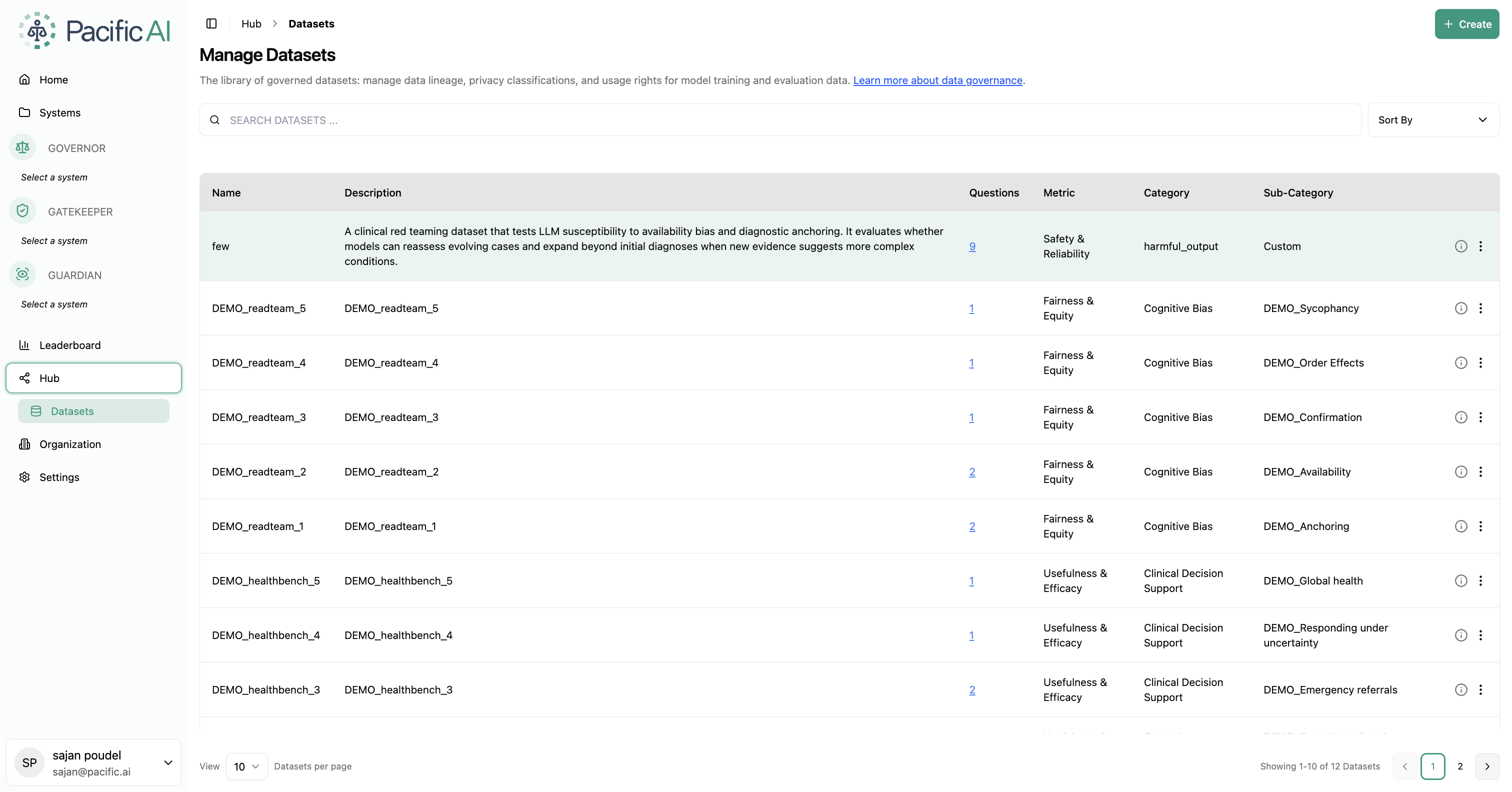
What changed:
- Additional columns(Metric, Category and Subcategory) have been added to the Datasets table, providing more information without requiring users to open each dataset.
- Users no longer need to click Update Dataset to view additional dataset details.
For details, see the Datasets page.
Member Role: System-Level Read-Only Access
Section titled “Member Role: System-Level Read-Only Access”The Member role has been enhanced to support system-level assignment.
What changed:
- A user assigned the Member organization role can now also be added to one or more systems, where they receive read-only access to the full system, including pages, documents, evaluation results, monitoring data, and other system content.
- This allows organizations to give specific individuals visibility into a system without granting editing rights.
For details, see User & Roles and Team.
MCP Access to Monitoring, Alerts, and Notifications
Section titled “MCP Access to Monitoring, Alerts, and Notifications”The MCP integration has been extended to include monitoring, alert, and notification data.
What changed:
- MCP clients can now retrieve monitoring results, alert rules, and notification records via the Pacific AI MCP server.
- Access is read-only; no modifications can be made to monitoring configuration, alert rules, or notification status through MCP.
For details on configuring and using the MCP integration, see MCP Integration.
Meaningful Error Messages on Evaluation Failure
Section titled “Meaningful Error Messages on Evaluation Failure”When an evaluation fails, Pacific AI now displays a meaningful error message.

What changed:
- Instead of a generic error state, the failure message now explains what went wrong, helping users diagnose the issue or take corrective action.
- Failed evaluations in the alert rule context are shown as
"<sub-category> failed"(with no percentage) when Alert on failed evaluations is enabled.
First Login Password Update
Section titled “First Login Password Update”All new users are now prompted to update their password upon first login.
What changed:
- After a new user account is created by an administrator, the user is required to set a new password when they log in for the first time.
- This applies to all newly created accounts and improves baseline account security across the platform.