
Test Suites & Leaderboard
The Test Suites module allows users to configure, manage, execute, and compare evaluation scenarios for LLM-powered systems. It provides a structured way to test performance across multiple categories and maintain versioned evaluation records.
LLM Endpoints
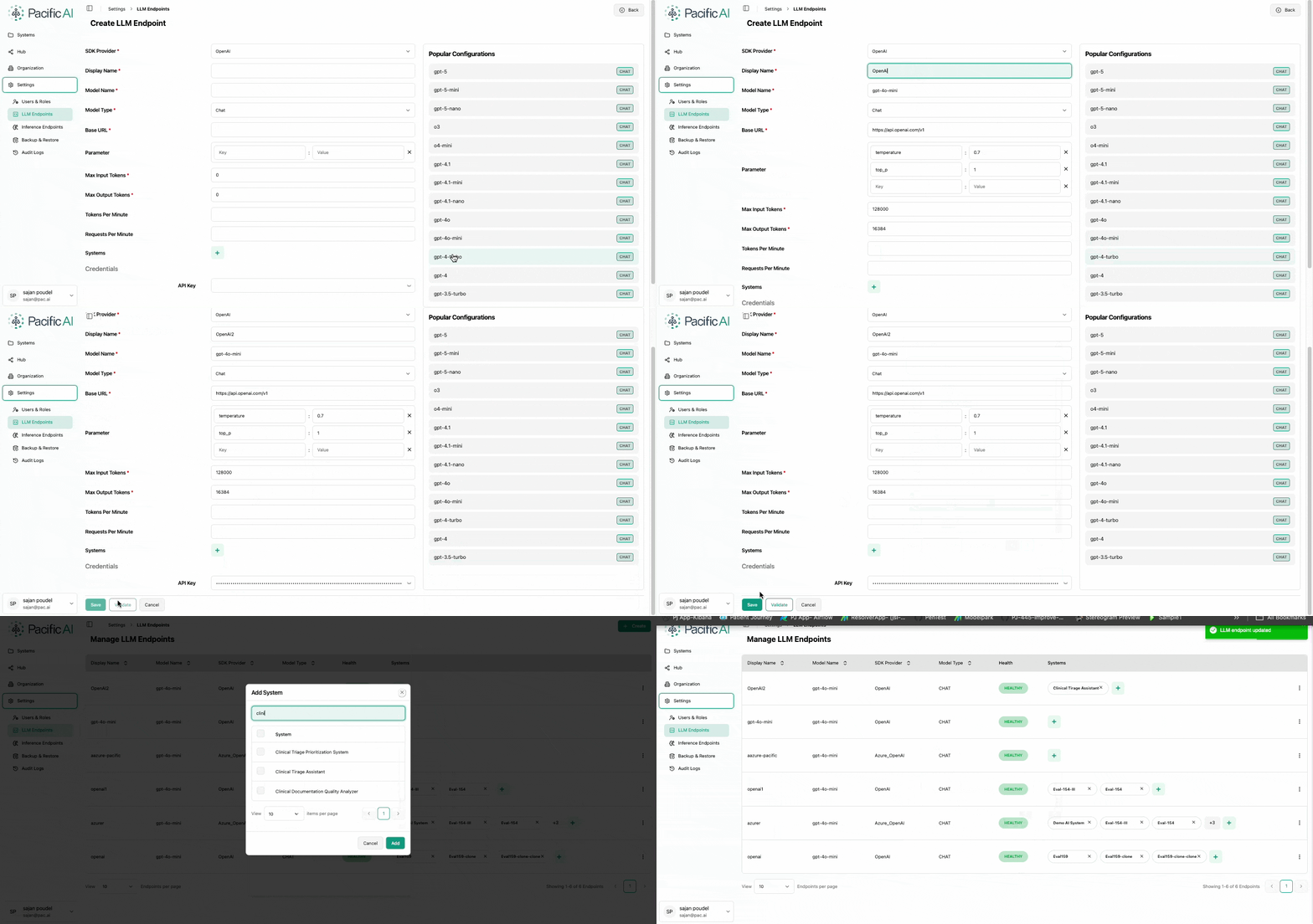
Section titled “LLM Endpoints”Before creating or running a Test Suite, at least one LLM endpoint must be configured. Test Suites are executed for these configured LLMs.
Configure an LLM Endpoint
Section titled “Configure an LLM Endpoint”- Navigate to Settings → LLM Endpoints.
- Click Add and provide the required details:
- Endpoint URL
- SDK configuration
- Secret / API Key
- Assign the systems that are permitted to use this LLM.
Create, Update, Clone, and Delete Test Suites
Section titled “Create, Update, Clone, and Delete Test Suites”The Test Suites section (under the System parent node) is where all existing test configurations are stored and managed. Selecting this option opens the Test Suite page, which displays all test suites accessible to the user.
Create a Test Suite
Section titled “Create a Test Suite”- Navigate to the Test Suite page.
- Click the Create button to open the Create Test Config form.
- Provide the following details:
- Name (mandatory)
- Description (optional)
- Select the LLM
- Specify the number of instances
- Select the required test categories using the checkboxes on the right side of the screen.
- Click Save to complete the configuration.
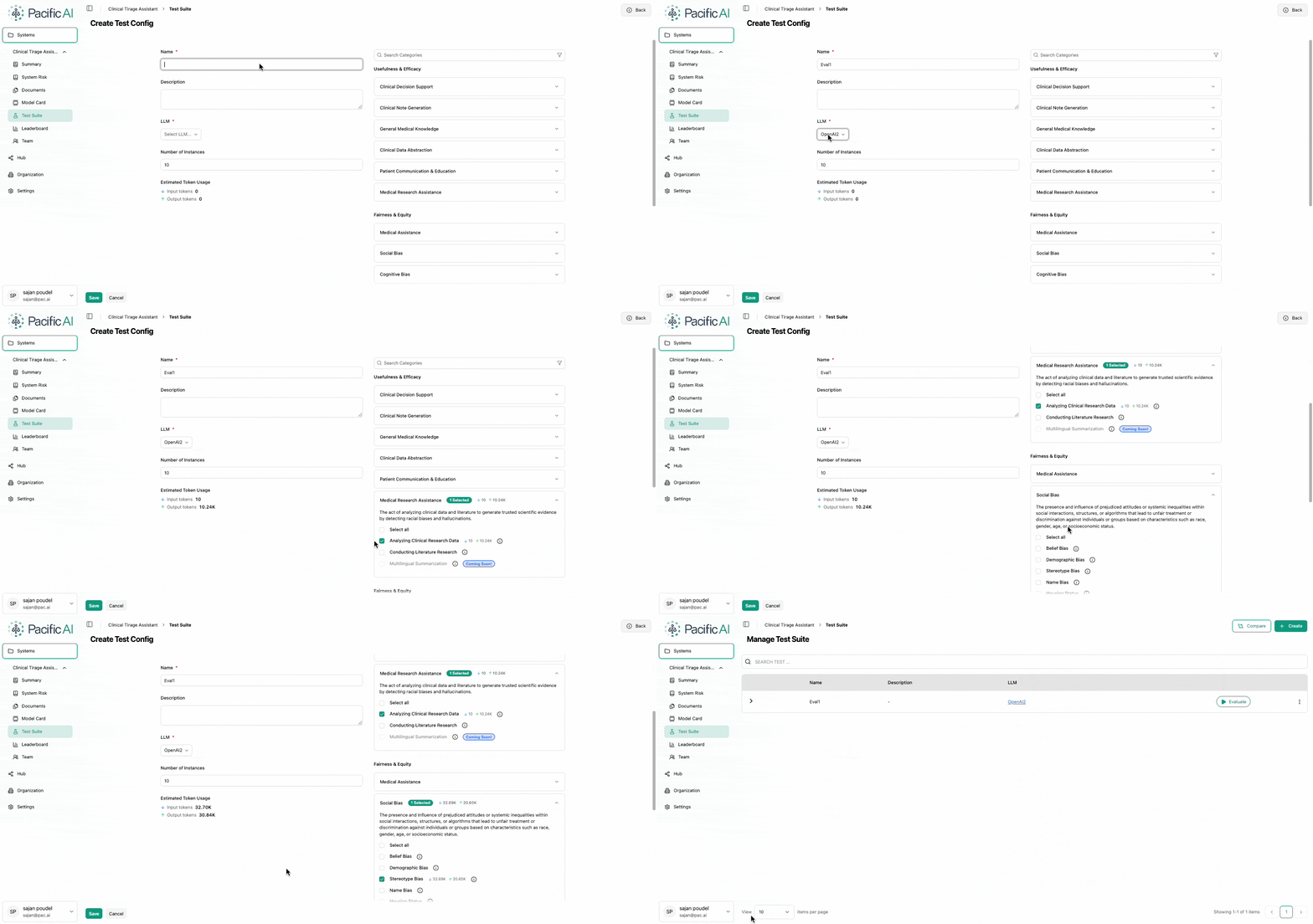
Once saved, the Test Suite becomes available for execution.
Update a Test Suite
Section titled “Update a Test Suite”- Go to the Test Suite page.
- Click the kebab menu (three dots) next to the desired Test Suite.
- Select Update Test Config.
- Make the necessary changes and save.
Clone a Test Suite
Section titled “Clone a Test Suite”Cloning allows users to duplicate an existing configuration, which is useful when creating variations of a test setup.
- Click the kebab menu next to the Test Suite.
- Select Clone Test Suite. This will clone the configuration of the existing test suite and create a new one.
Delete a Test Suite
Section titled “Delete a Test Suite”- Click the kebab menu next to the Test Suite.
- Select Delete.
Publish Scores to Model Card
Section titled “Publish Scores to Model Card”Users can publish Test Suite scores to the Model Card:
- Click the kebab menu next to the Test Suite.
- Select Publish in Model Card.
Run and Compare Tests
Section titled “Run and Compare Tests”After a Test Suite is created, users can execute evaluations against the configured LLM.
Run a Test Suite
Section titled “Run a Test Suite”- Click the Evaluate button to start a test run.
- A new Test Run ID is generated for each execution.
- Test Suites can be executed multiple times.
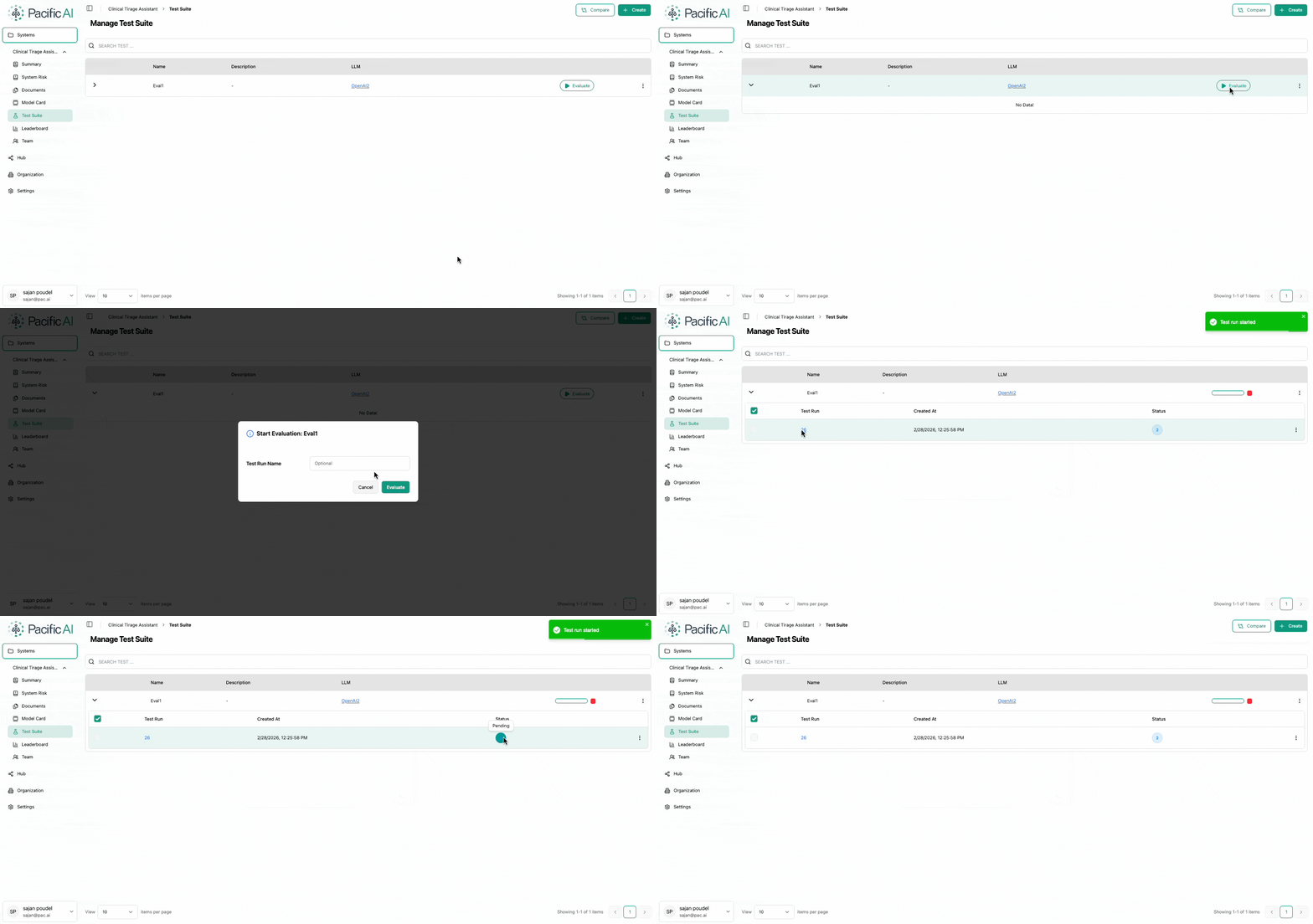
Each run is tracked independently, enabling performance comparison over time.
Monitor Test Runs
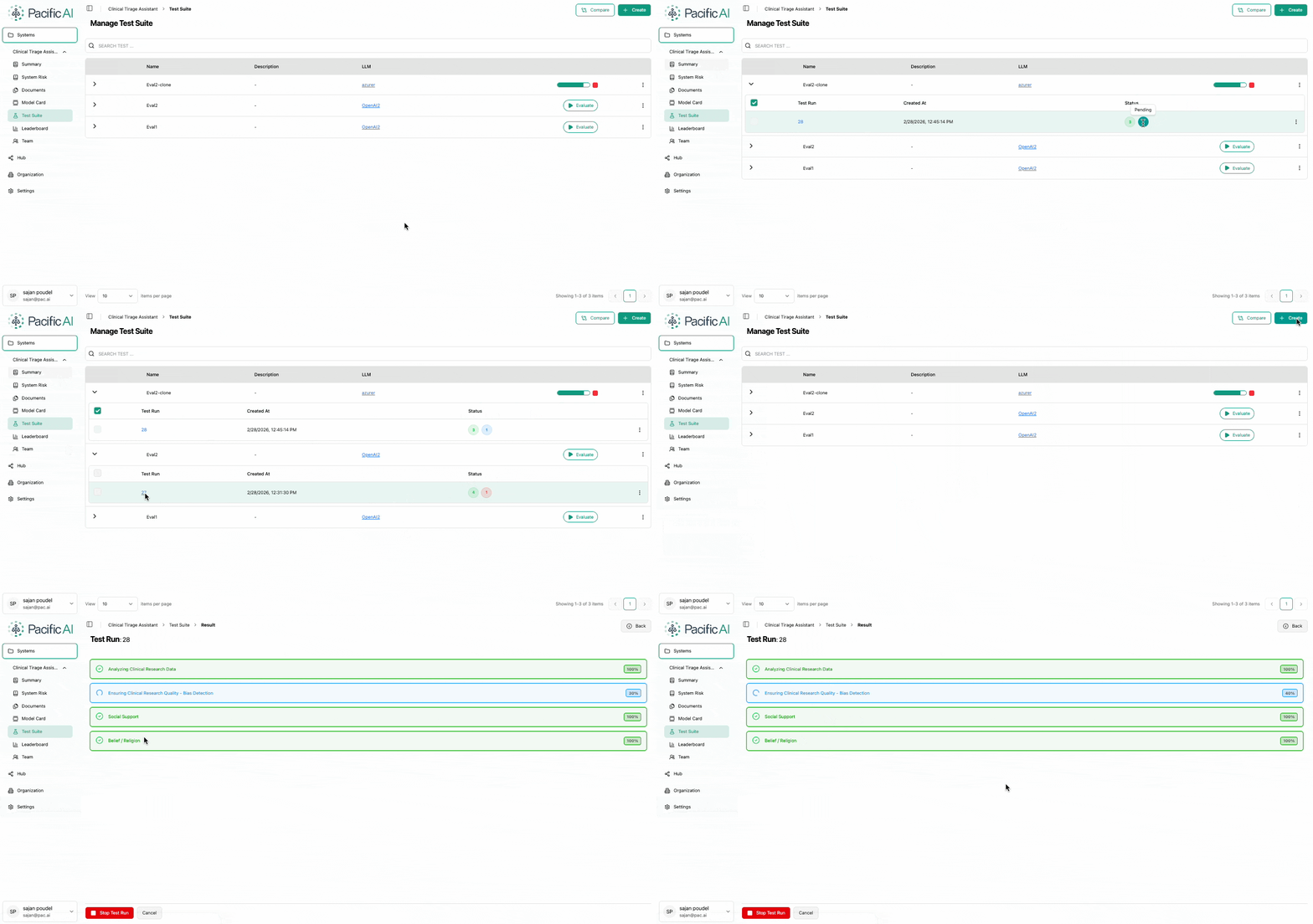
Section titled “Monitor Test Runs”- The status and progress of each run are displayed in the Test Suite page.
- Click on the Run ID to view live progress (for running evaluations) or scores and metrics (for completed runs).
Compare Test Runs
Section titled “Compare Test Runs”Users can compare results across multiple runs:
- Expand the relevant Test Suite.
- Select the test runs to compare.
- Click the Compare button at the top-right of the screen.
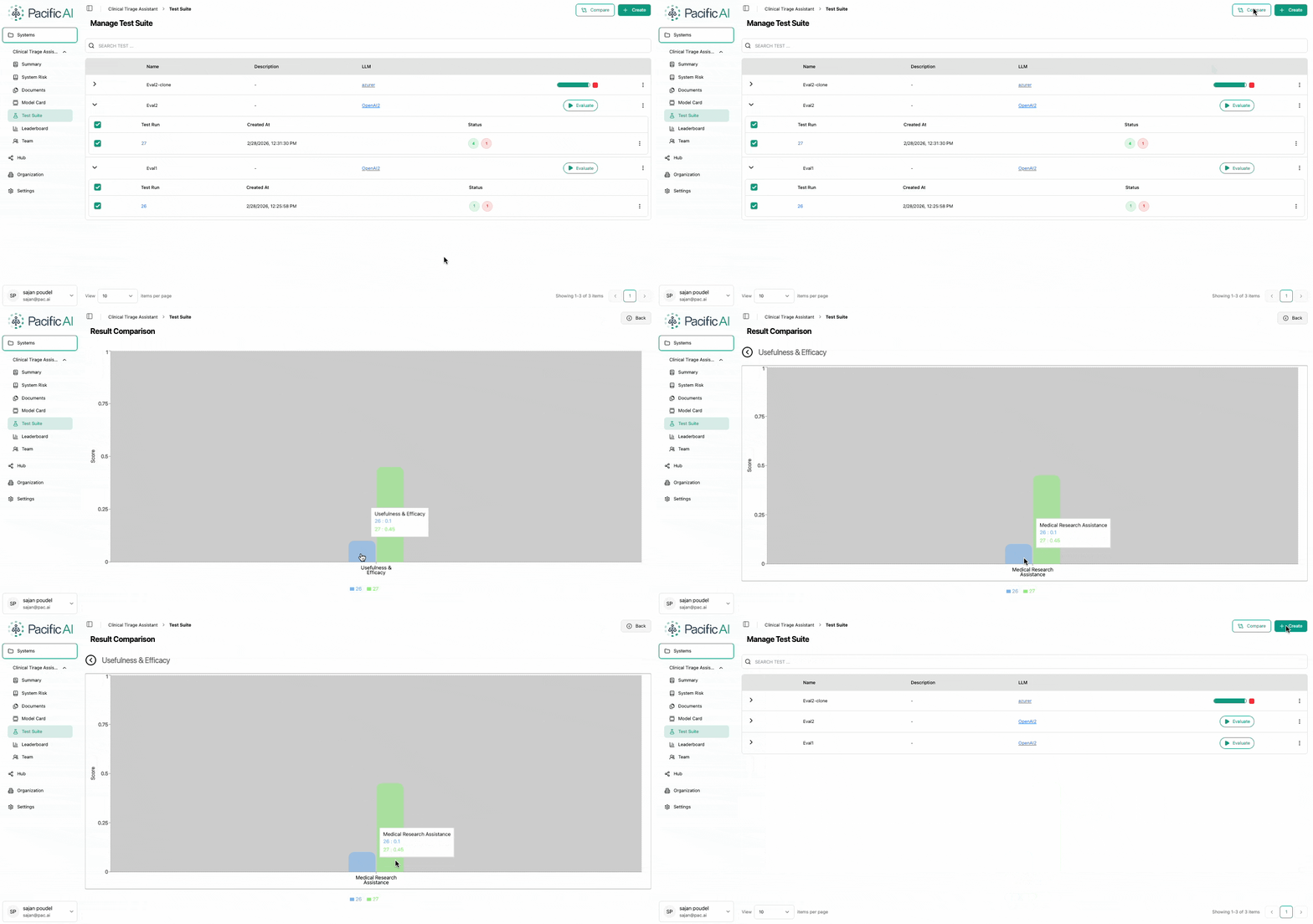
This comparison view highlights differences in metrics across selected runs.
Leaderboard
Section titled “Leaderboard”The Leaderboard provides a consolidated view of performance across test subcategories.
- Displays scores for each individual test subcategory.
- If multiple test runs exist within a Test Suite, only the latest run is considered.
- Users can apply filters to refine the displayed results.
- The highest score among test runs is displayed in bold green for quick identification.
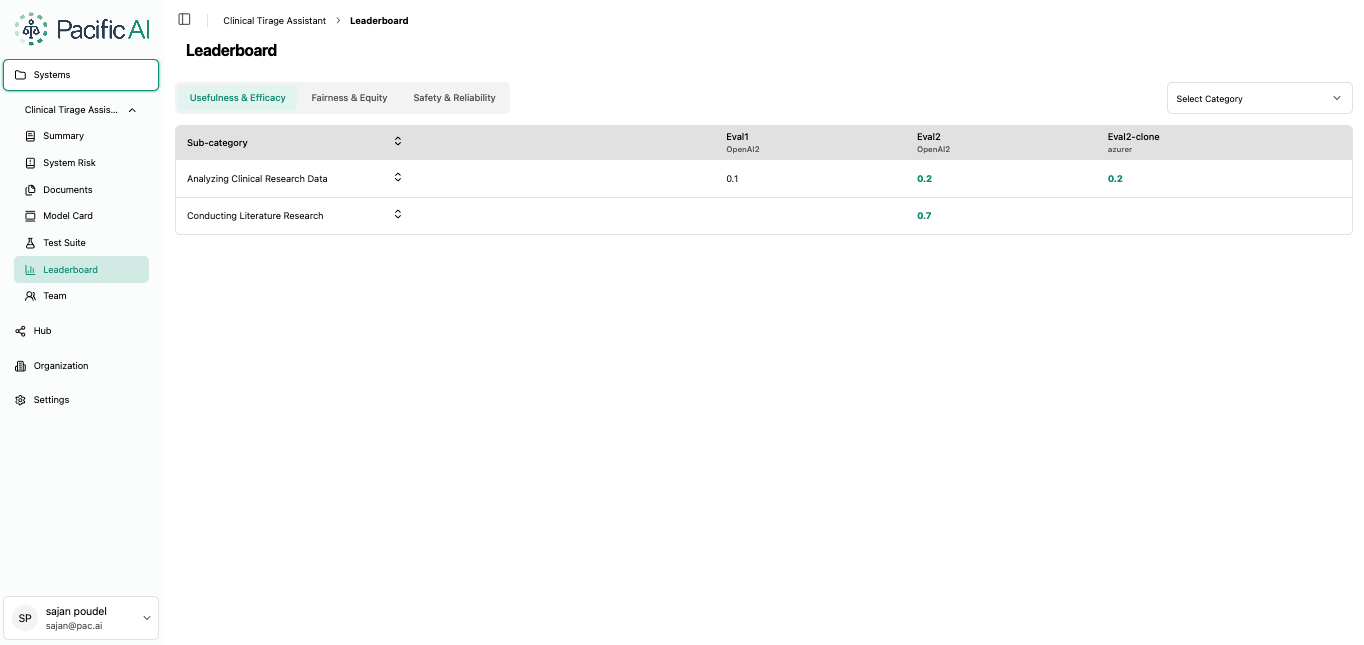
The Leaderboard helps stakeholders quickly assess model performance and identify top-performing configurations across evaluation categories.