
v1.1.0 — Release Notes
Release Date: July 8, 2026
Enhanced Governance, Collaboration, and AI Workflow Integration
Section titled “Enhanced Governance, Collaboration, and AI Workflow Integration”Pacific AI 1.1.0 introduces a collection of new features and enhancements focused on strengthening AI governance, improving collaboration, and expanding platform integration capabilities. This release delivers a redesigned System-Based Navigation experience that organizes governance, evaluation, and monitoring features into dedicated functional areas, making it easier to manage AI systems throughout their lifecycle.
This release also introduces seamless integration with the CHAI Registry, allowing Model Cards to be published directly from Pacific AI, along with a redesigned, interactive Model Card experience featuring version history, improved reporting, and enhanced compliance support. In addition, automatic Model Card synchronization ensures documentation remains up to date as systems evolve, while administrators gain greater flexibility through features such as editable system names and centralized audit logging.
To support modern AI-assisted development workflows, Pacific AI now includes Model Context Protocol (MCP) Server support, enabling secure integration with MCP-compatible tools such as Claude Code, Codex, and other agentic development environments. Together, these enhancements provide a more connected, transparent, and efficient experience for governing, documenting, evaluating, and managing AI systems.
AWS Marketplace Installation
Section titled “AWS Marketplace Installation”- Added a comprehensive manual AWS installation guide covering EC2, networking, and security group configuration.
- Step-by-step instructions for initial admin login and first-time password change.
- Documented IAM roles and permissions required for deployment.
System-Based Navigation
Section titled “System-Based Navigation”What’s New
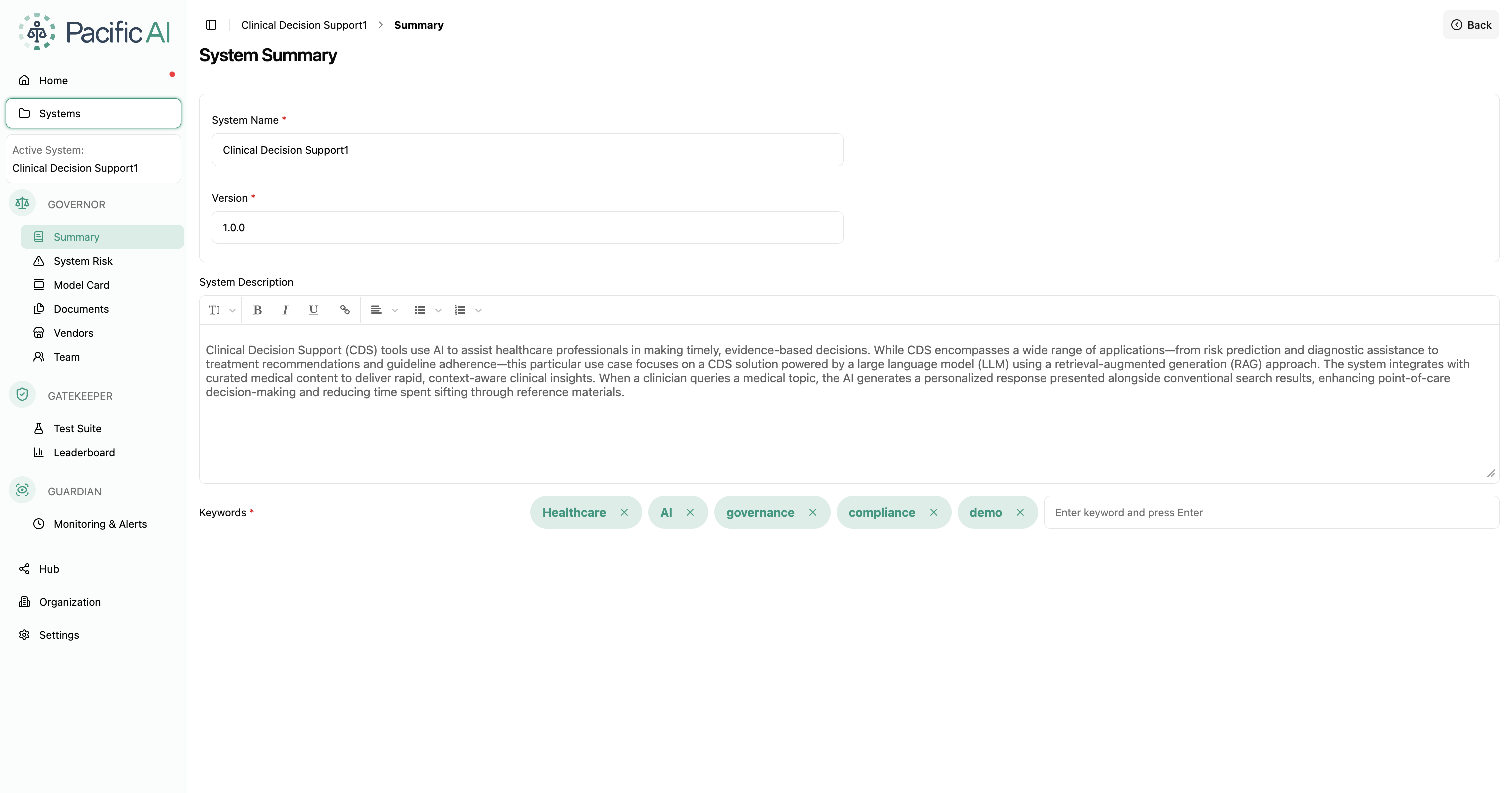
Section titled “What’s New”Version 1.1.0 introduces System-Based Navigation, providing a more intuitive way to organize and access the capabilities of Pacific AI. Instead of presenting all features in a single navigation structure, the platform now groups functionality into three dedicated areas based on the lifecycle of an AI system:
- Governor — Governance, documentation, and risk management
- Gatekeeper — Model evaluation and benchmarking
- Guardian — Scheduled test execution and monitoring
This enhancement improves navigation and makes it easier to locate features while maintaining the existing functionality and workflows.
Technical Details
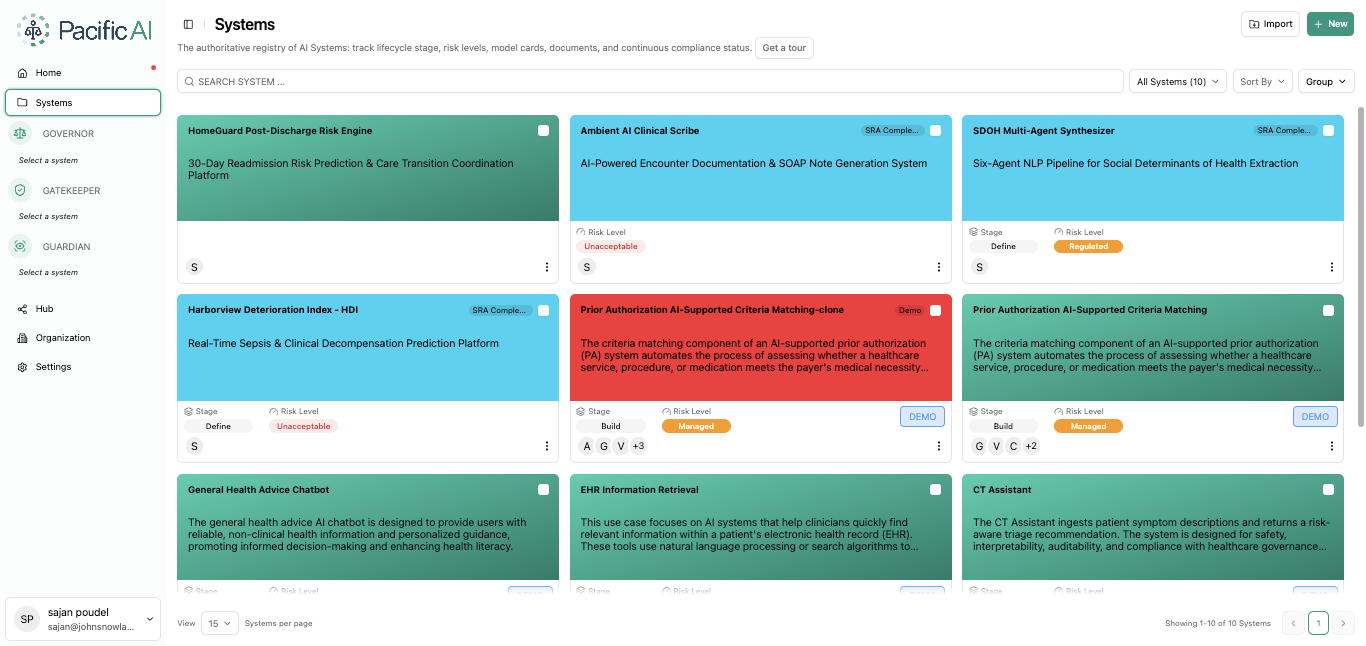
Section titled “Technical Details”Pacific AI now operates around the concept of an Active System. When users first sign in, no system is selected. The navigation panel displays the three functional areas---Governor, Gatekeeper, and Guardian but their pages remain hidden until a system is chosen. Instead, users are prompted to Select a System, ensuring that all activities are performed within the context of a specific AI system.
Once a system is selected from the Systems Dashboard, it becomes the active system. The selected system is displayed in the navigation panel, and all related pages become available under their respective functional areas. Switching to another system automatically updates the navigation and displays information associated with the newly selected system.
Governor
Section titled “Governor”The Governor section centralizes governance, documentation, and risk management capabilities for the selected system.
Available pages include:
- Summary — View and manage system information, including name, description, version, and keywords.
- System Risk — Create and manage risk assessments, architecture analysis, impact assessments, compliance reviews, and risk registries.
- Model Card — Generate, edit, review, and download Model Cards based on uploaded system documentation.
- Documents — Upload, organize, search, and manage architecture, quality assurance, operational, and regulatory documents.
- Vendors — View vendors associated with the active system. Results are automatically filtered for the selected system.
- Teams — Manage users assigned to the active system and define system-level roles and responsibilities.
Gatekeeper
Section titled “Gatekeeper”The Gatekeeper section focuses on evaluating and benchmarking AI models.
Available pages include:
- Test Suite - Create, configure, and execute Test Suites to evaluate models across supported benchmark categories, including safety, fairness, reliability, and other evaluation dimensions.
- Leaderboard - Review and compare evaluation results from Test Suites, providing a consolidated view of model performance across multiple benchmarks.
Guardian
Section titled “Guardian”The Guardian section provides scheduled monitoring capabilities for AI systems by allowing users to automate the execution of Test Suites at predefined intervals. This helps teams continuously evaluate system performance over time without manually initiating each test run. User can configure Test Suites to run automatically at regular intervals and monitor their execution from a centralized view.
Each scheduled test run displays:
- Current execution status, allowing users to quickly determine whether a run is pending, in progress, completed, or failed.
- Run history, with results from previous executions stored for future reference.
- Manual execution, enabling users to trigger a scheduled Test Suite at any time without waiting for the next scheduled interval.
- Run analytics, providing evaluation metrics and performance insights for each execution. Selecting a scheduled test run displays the corresponding analytics and results for that specific run.
User Benefits
Section titled “User Benefits”- Simplified navigation, with related features organized into logical functional areas.
- System-focused experience, ensuring all activities are performed within the context of the selected AI system.
- Faster access to key functionality, reducing the time required to locate governance, evaluation, and monitoring features.
- Improved organization, making it easier to manage documentation, testing, and monitoring throughout the AI lifecycle.
Example Use Case
Section titled “Example Use Case”A user responsible for managing multiple AI systems selects a system from the Systems Dashboard. Once selected, the navigation automatically updates to display all governance, evaluation, and monitoring features related to that system.
The user begins by reviewing documentation and risks under Governor, executes benchmark tests from Gatekeeper, and then schedules and monitors scheduled evaluations and alerts through Guardian. When switching to another AI system, the same navigation structure remains consistent while all information automatically updates to reflect the newly selected system, providing a seamless and organized experience.
Publish Model Cards to the CHAI Registry
Section titled “Publish Model Cards to the CHAI Registry”What’s New
Section titled “What’s New”Version 1.1.0 introduces support for publishing Model Cards directly to the CHAI Registry. This feature enables organizations to securely share Model Cards with external stakeholders and collaborate through a centralized registry.
Once CHAI Registry credentials have been configured, Model Cards can be published directly from the Model Card page without requiring any additional export or upload steps.
Technical Details
Section titled “Technical Details”CHAI Registry Integration
Section titled “CHAI Registry Integration”Pacific AI now supports integration with the CHAI Registry for publishing Model Cards. Before a Model Card can be published, users must configure their CHAI Registry credentials.
To configure the integration:
- Navigate to Settings → System Settings.
- Enter the required CHAI Registry credentials.
- Save the configuration.
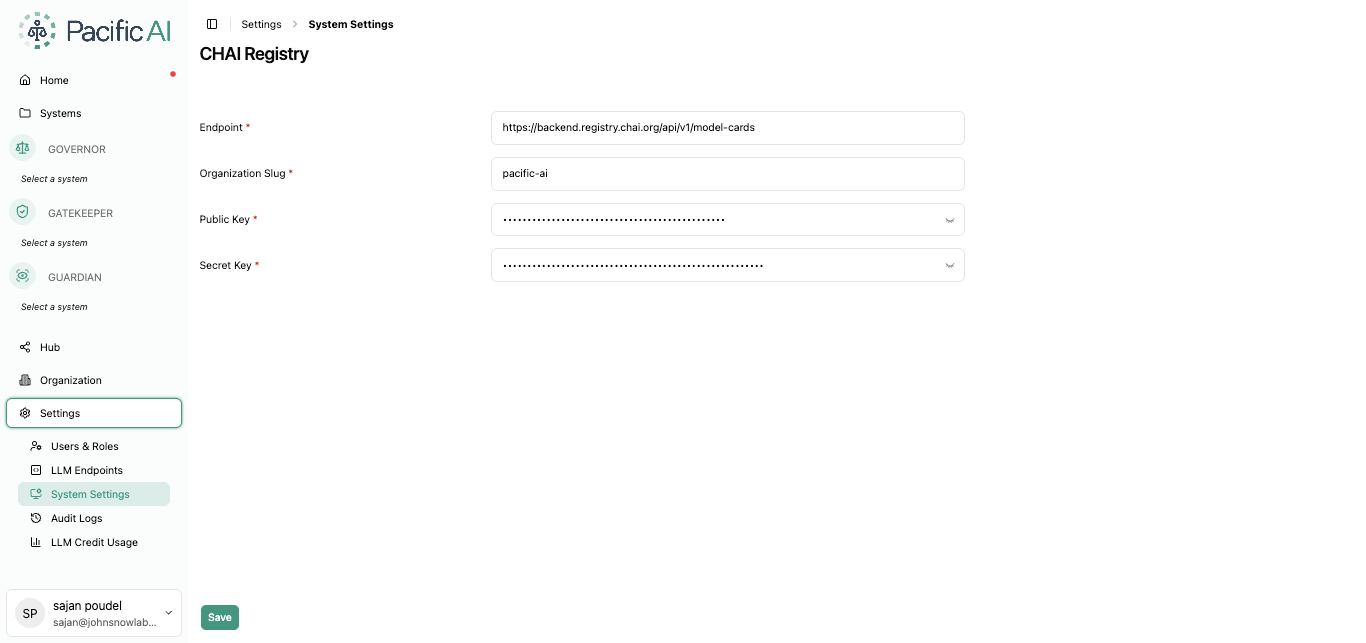
Once configured, users can return to the Model Card page and publish Model Cards directly to the CHAI Registry.
Publishing a Model Card
Section titled “Publishing a Model Card”Publishing is available from the options menu located in the upper-right corner of the Model Card page.
From this menu, users can:
- Save the current Model Card.
- Download the Model Card.
- Publish to CHAI Registry for external sharing and collaboration.
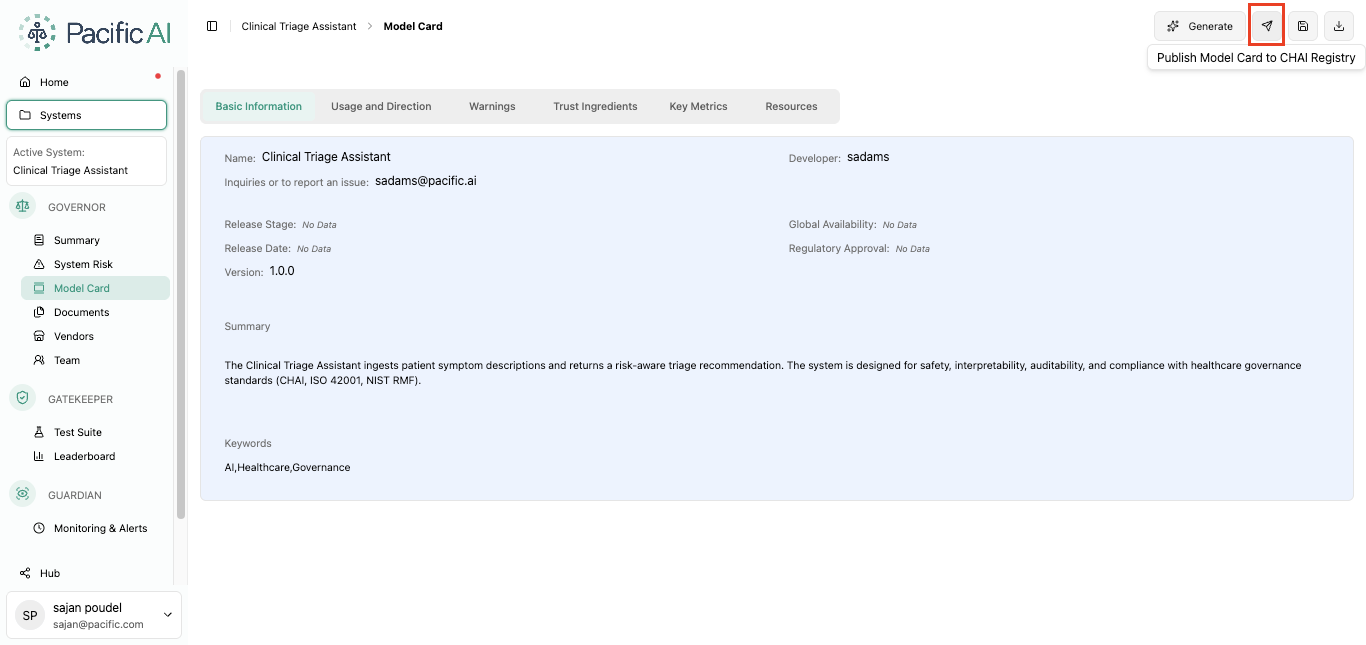
The publishing process uses the configured CHAI Registry credentials, allowing Model Cards to be transferred directly to the registry.
User Benefits
Section titled “User Benefits”- Simplified publishing workflow, eliminating the need to manually export and upload Model Cards.
- Centralized sharing, making Model Cards available through the CHAI Registry for collaboration and governance.
- Reduced administrative effort, with publishing integrated directly into the existing Model Card workflow.
- Consistent documentation, ensuring the latest version of a Model Card can be shared from within Pacific AI.
- Secure integration, using configured CHAI Registry credentials to authenticate publishing requests.
Example Use Case
Section titled “Example Use Case”After completing a Model Card for an AI system, a governance team needs to share it with external reviewers through the CHAI Registry. The administrator configures the organization’s CHAI Registry credentials once in System Settings. The reviewer then opens the Model Card page, selects Publish to CHAI Registry from the options menu, and publishes the Model Card directly without downloading or manually uploading the document.
MCP Server Integration for Pacific AI
Section titled “MCP Server Integration for Pacific AI”What’s New
Section titled “What’s New”Version 1.1.0 introduces Model Context Protocol (MCP) Server support for Pacific AI, enabling secure integration with MCP-compatible AI assistants and development environments such as Claude Code, Codex, and other agentic tools.
The MCP Server allows authenticated AI assistants to interact directly with Pacific AI through a standardized protocol, making it possible to retrieve system information, orchestrate workflows, and execute supported operations without leaving the IDE. All requests are authenticated and fully traceable to the signed-in user, ensuring secure access and complete auditability.
Technical Details
Section titled “Technical Details”Secure MCP Integration
Section titled “Secure MCP Integration”Pacific AI now exposes authenticated MCP endpoints alongside its existing REST APIs. Unlike public APIs, MCP endpoints require user authentication before any operation can be performed.
Key capabilities include:
- Authenticated access to Pacific AI through the Model Context Protocol (MCP).
- Compatibility with MCP-enabled clients such as Claude Code, Codex, and other supported AI tools.
- Support for both connected and air-gapped environments.
- Complete auditability, with every MCP request associated with the authenticated user.
Supported MCP Operations
Section titled “Supported MCP Operations”The initial MCP implementation provides access to common Pacific AI workflows, including operations such as:
- Retrieving information about AI systems
- Accessing governance artifacts
- Generating System Risk Assessments (SRA)
- Running supported Test Suites
- Performing additional workflow automation through supported MCP tools
The available capabilities will continue to expand in future releases.
Configuring the MCP Server in Claude Desktop
Section titled “Configuring the MCP Server in Claude Desktop”To connect Claude Desktop to Pacific AI using the Model Context Protocol (MCP):
-
Open Claude Desktop.
-
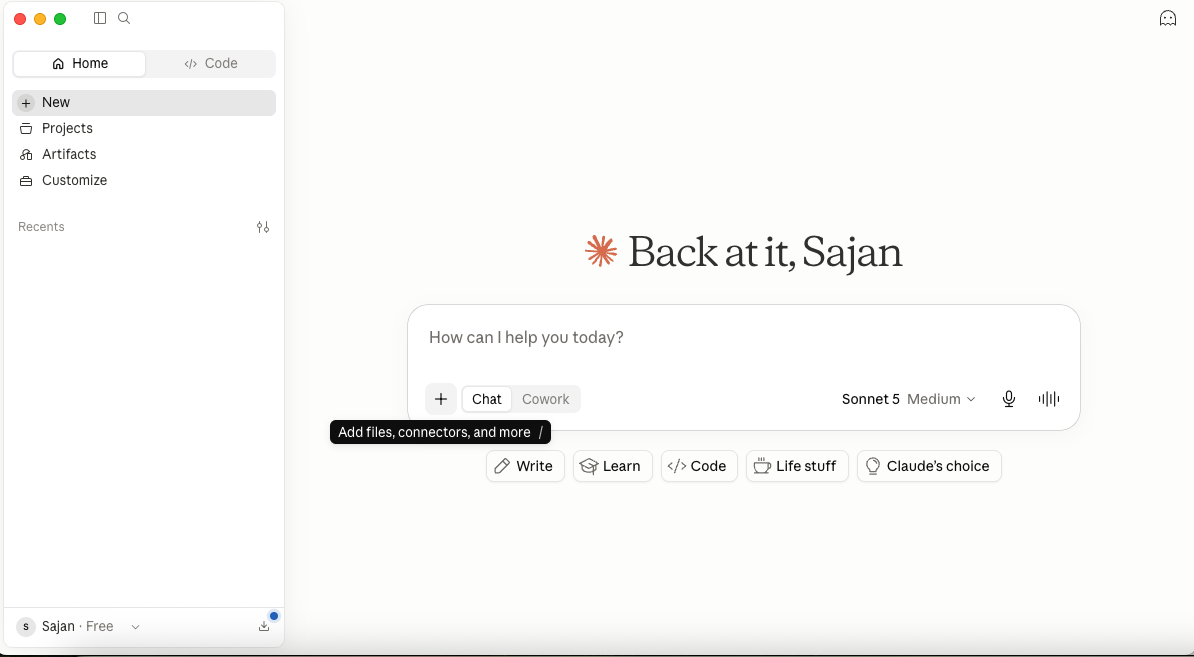
Click the + icon below the chat input.
-
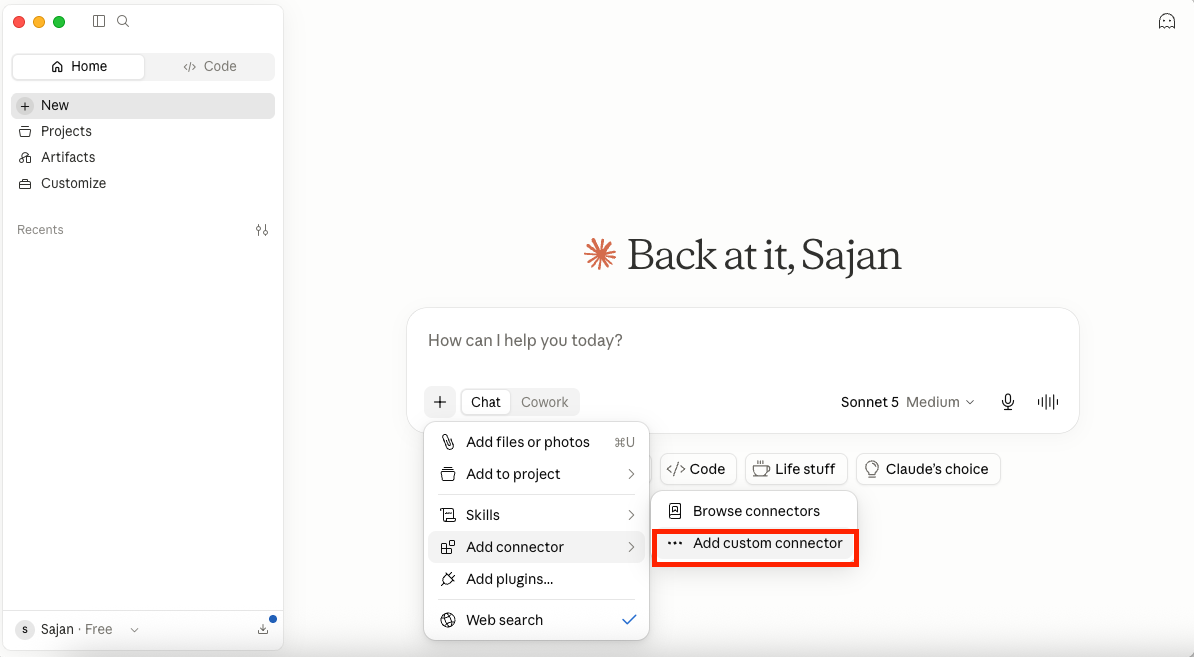
Select Add Connectors → Add Custom Connector.
-
In the Add Custom Connector dialog, provide the following information:
- Name: A descriptive name for the connector (for example, Pacific AI MCP).
- URL: The Pacific AI MCP endpoint (for example,
https://<server-address>/mcp). - Client ID:
pacific-ai-mcp
-
Click Add to create the connector.
-
When prompted, sign in using your Pacific AI credentials to complete authentication.
-
After authentication is complete, return to Claude Desktop.
Once the connector has been authenticated, Claude can securely communicate with Pacific AI through the MCP server. Users can then interact with Pacific AI directly from the Claude chat interface to retrieve system information and perform supported MCP operations.
User Benefits
Section titled “User Benefits”- Direct integration with AI-assisted development tools, allowing Pacific AI to be accessed from supported IDEs and agentic applications.
- Secure authentication, ensuring only authorized users can perform MCP operations.
- Complete auditability, with every action attributed to the authenticated user.
- Reduced context switching, enabling users to retrieve information and execute workflows without leaving their development environment.
- Extensible architecture, allowing additional Pacific AI capabilities to be exposed through MCP in future releases.
Example Use Case
Section titled “Example Use Case”A user configures the Pacific AI MCP Server in Visual Studio Code and authenticates using their Pacific AI account. After selecting an LLM supported by the IDE, the user interacts with Pacific AI through the chat interface to retrieve information about AI systems, generate a System Risk Assessment, or execute a Test Suite. All requests are securely authenticated, executed within Pacific AI, and recorded for auditing, providing a seamless AI-assisted workflow without leaving the development environment.
Improvements
Section titled “Improvements”Enhanced Model Card Experience
Section titled “Enhanced Model Card Experience”What’s New
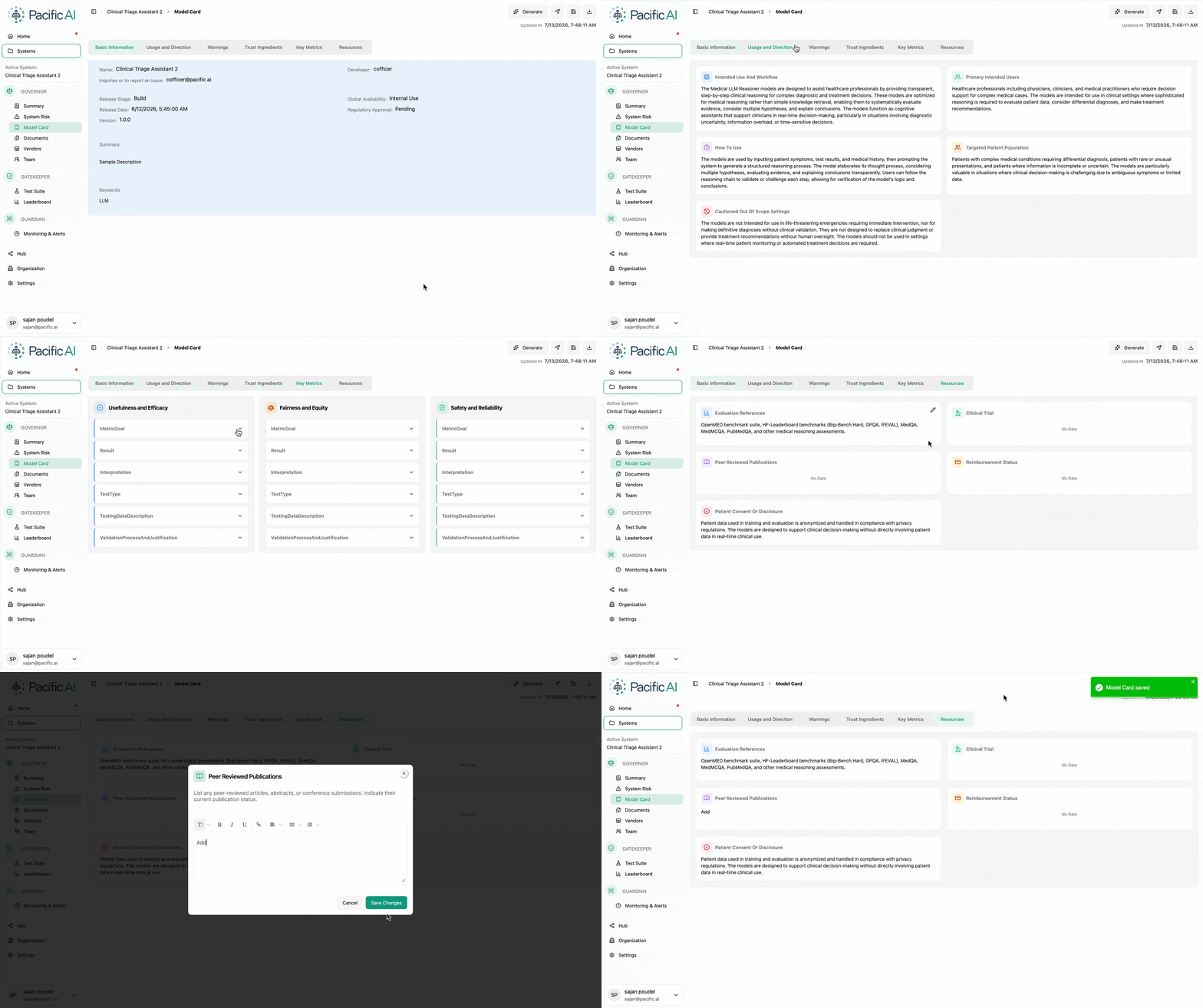
Section titled “What’s New”Version 1.1.0 introduces a completely redesigned Model Card experience in Pacific AI. The previous CHAI-branded PDF has been replaced with a Pacific AI-branded, interactive HTML Model Card that provides a more modern and flexible way to review, edit, and share model documentation.
The new Model Card is no longer limited to a static PDF view. Users can now edit the content directly within the application, publish Model Cards to the CHAI Registry, download professionally formatted PDF versions, and maintain version history for improved governance and compliance.
Technical Details
Section titled “Technical Details”Interactive HTML-Based Model Card
Section titled “Interactive HTML-Based Model Card”The Model Card has been redesigned as a fully scrollable and editable HTML page, allowing users to review and update documentation directly within Pacific AI before publishing or exporting.
Pacific AI Branding
Section titled “Pacific AI Branding”The previous CHAI branding has been replaced with Pacific AI branding throughout the Model Card. Exported documents now include the Pacific AI logo and footer, providing a consistent look and feel across generated documentation.
Integrated Publishing and Export
Section titled “Integrated Publishing and Export”The updated Model Card provides built-in actions for managing documentation:
- Publish Model Cards directly to the CHAI Registry using configured customer credentials.
- Download the current Model Card as a professionally formatted PDF.
- Maintain version history by storing published Model Card versions within the system’s document repository.
- Record publication events through an audit trail for improved traceability and governance.
Enhanced PDF Presentation
Section titled “Enhanced PDF Presentation”The exported PDF has been visually refined to improve readability and presentation. Important sections, including warnings and other key information, now use enhanced styling and color formatting to make critical content easier to identify.
Improved Metrics Presentation
Section titled “Improved Metrics Presentation”The Metrics section has been reorganized to improve readability, particularly for evaluations containing multiple benchmark results.
Enhancements include:
- The Interpretation field is now displayed beneath the corresponding metric results, providing additional space for evaluation data.
- Metric categories are displayed directly within the Results section, making it easier to distinguish between different evaluation dimensions.
- Evaluation scores are rounded to two decimal places for a cleaner and more consistent presentation.
User Benefits
Section titled “User Benefits”- Modern editing experience, allowing Model Cards to be reviewed and updated directly within the browser.
- Simplified publishing workflow, with integrated options for publishing to the CHAI Registry and exporting professionally formatted PDFs.
- Improved governance and traceability, through built-in version history and publication audit records.
- Better compliance support, with additional documentation fields designed to accommodate evolving AI transparency regulations.
- Clearer evaluation reports, thanks to an improved Metrics section and enhanced PDF formatting that make results easier to interpret.
Example Use Case
Section titled “Example Use Case”A governance team completes the documentation for an AI system and reviews the Model Card directly within Pacific AI’s interactive HTML interface. After making final edits, they publish the Model Card to the CHAI Registry, download a branded PDF for internal approval, and retain a versioned copy within the system. The improved Metrics section and enhanced report formatting make evaluation results easier to review, while the built-in audit trail provides complete visibility into publication history.
Update System Name
Section titled “Update System Name”What’s New
Section titled “What’s New”Version 1.1.0 introduces the ability to rename existing systems in Pacific AI. Previously, the system name was fixed after creation and could not be modified. Users with the appropriate permissions can now update the system name whenever required, making it easier to accommodate changes in project naming, versioning, or organizational standards.
(/assets/1.1.0/UpdateSystemName.gif)
Technical Details
Section titled “Technical Details”Editable System Name
Section titled “Editable System Name”The system name can now be updated after a system has been created. This provides greater flexibility for managing AI systems whose names evolve over time due to project changes, organizational updates, or revised naming conventions.
Role-Based Access Control
Section titled “Role-Based Access Control”To maintain governance and prevent unauthorized modifications, only users with the following roles can rename a system:
- Risk Manager
- Governance Officer
Users without these privileges continue to have read-only access to the system name.
Seamless Integration
Section titled “Seamless Integration”Renaming a system does not affect its configuration, associate documents, risk assessments, Model Cards, Test Suites, or monitoring data. The update is applied while preserving all existing relationships and system history.
User Benefits
Section titled “User Benefits”- Greater flexibility to keep system names aligned with evolving projects and organizational naming standards.
- Reduced administrative effort, eliminating the need to recreate systems solely to correct or update a name.
- Controlled access, ensuring only authorized governance roles can modify system names.
- No impact on existing data, allowing associated assets and configurations to remain intact after a rename.
Example Use Case
Section titled “Example Use Case”An AI system initially created as “Clinical Assistant Prototype” is approved for production and renamed to “Clinical Decision Support Assistant” to align with organizational naming standards. A user with the Governance Officer role updates the system name directly within Pacific AI, while all associated documentation, Model Cards, risk assessments, Test Suites, and monitoring configurations remain unchanged.
Automatic Model Card Updates
Section titled “Automatic Model Card Updates”What’s New
Section titled “What’s New”Version 1.1.0 introduces automatic Model Card updates for key system events. Previously, changes made to system information or governance data required the Model Card to be regenerated or manually updated to reflect the latest information. With this enhancement, relevant sections of the Model Card are now updated automatically in the background whenever supported events occur, ensuring that documentation remains accurate and up to date.
Technical Details
Section titled “Technical Details”Event-Driven Model Card Synchronization
Section titled “Event-Driven Model Card Synchronization”The Model Card now listens for changes made across Pacific AI and automatically updates the relevant sections without requiring manual intervention. Only the affected portions of the Model Card are refreshed, preserving existing content while ensuring the latest information is reflected.
Supported Automatic Updates
Section titled “Supported Automatic Updates”The Model Card is automatically updated when any of the following events occur:
- New documents are added to the system.
- System information is modified, including the System Name, Description, Version, or Keywords.
- A Compliance Officer is assigned to the system through the Teams page.
- A System Risk Assessment (SRA) is reviewed by a Compliance Officer, resulting in updates to information such as the system’s lifecycle stage or risk level.
Background Processing
Section titled “Background Processing”These updates are performed automatically in the background, allowing users to continue working without interrupting their workflow. No manual refresh or regeneration of the Model Card is required to capture the latest system information.
User Benefits
Section titled “User Benefits”- Always up-to-date documentation, with key sections of the Model Card automatically reflecting the latest system information.
- Reduced manual effort, eliminating the need to regenerate or edit Model Cards after routine updates.
- Improved consistency, ensuring governance documentation remains synchronized with system data.
- Greater confidence in published documentation, as Model Cards accurately represent the current state of the AI system.
Example Use Case
Section titled “Example Use Case”A governance team uploads new system documentation, updates the system description, and completes a System Risk Assessment review that changes the system’s risk level. Rather than manually updating the Model Card, Pacific AI automatically refreshes the affected sections in the background. When the team later reviews or publishes the Model Card, it already reflects the latest system information without any additional steps.
Audit Logs
Section titled “Audit Logs”What’s New
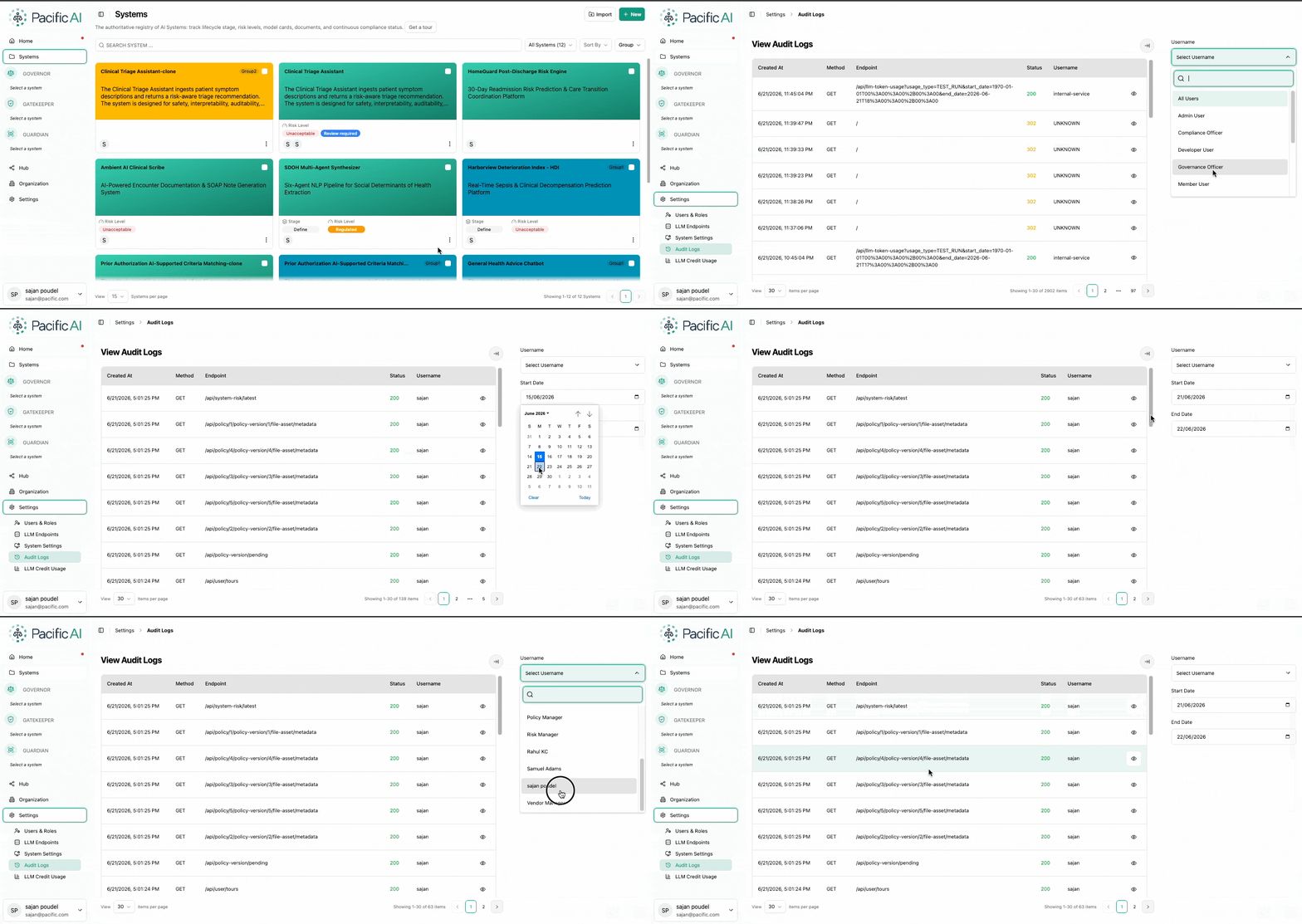
Section titled “What’s New”Version 1.1.0 introduces a centralized Audit Logs page, providing administrators with a comprehensive view of activities performed across Pacific AI. The new audit trail records user actions throughout the application, making it easier to monitor system usage, investigate changes, and support governance and compliance requirements.
Access to the Audit Logs page is restricted to Administrators, ensuring that audit information remains secure and accessible only to authorized users.
Technical Details
Section titled “Technical Details”Centralized Activity Tracking
Section titled “Centralized Activity Tracking”Pacific AI now records user activities performed throughout the application. Each audit record captures key information about the action, allowing administrators to review who performed an action, when it occurred, and what operation was executed.
Each audit log entry includes:
- Username of the user who performed the action.
- Action describing the activity that was performed.
- Timestamp indicating when the activity occurred.
Flexible Search and Filtering
Section titled “Flexible Search and Filtering”To simplify auditing and investigations, the Audit Logs page includes built-in filtering capabilities.
Administrators can:
- Filter audit records by user.
- Filter activities using a date range.
- Configure the number of records displayed per page for easier navigation through large audit histories.
These filtering options help administrators quickly locate specific events without manually reviewing the entire audit log.
Administrator-Only Access
Section titled “Administrator-Only Access”The Audit Logs page is available exclusively to users with Administrator privileges, ensuring that audit information is protected and managed according to organizational security policies.
User Benefits
Section titled “User Benefits”- Complete visibility into system activity, providing a centralized record of user actions across Pacific AI.
- Simplified auditing and compliance, making it easier to review operational history and demonstrate governance.
- Faster investigations, with filtering options that help locate activities by user or time period.
- Improved accountability, ensuring important actions can be traced back to the user who performed them.
- Secure access, with audit information available only to authorized administrators.
Example Use Case
Section titled “Example Use Case”An administrator needs to investigate changes made to a system configuration during the previous week. Using the Audit Logs page, they filter the records by date range and the relevant user account. The resulting audit trail provides a chronological history of the user’s actions, allowing the administrator to quickly identify when the changes were made and verify the activity for compliance and troubleshooting purposes.