
Model Context Protocol (MCP) Integration
Pacific AI supports integration with applications that implement the Model Context Protocol (MCP), allowing AI assistants and development tools to securely communicate with Pacific AI.
Once configured, supported MCP clients can retrieve information from Pacific AI, perform governance-related tasks, and execute supported workflows directly from the AI assistant interface. All requests are authenticated using the user’s Pacific AI account and are recorded for auditing purposes.
Supported MCP Clients
Section titled “Supported MCP Clients”Pacific AI can be integrated with any MCP-compatible client, including:
- Claude Desktop
- Claude Code
- OpenAI Codex
- Other applications that support the Model Context Protocol
Supported Operations
Section titled “Supported Operations”After connecting an MCP client to Pacific AI, users can perform supported operations without leaving their development environment.
Current capabilities include:
- Retrieve information about AI systems
- Access governance artifacts
- Generate System Risk Assessments
- Execute Test Suites
- Perform supported Pacific AI workflows through MCP tools
Additional MCP capabilities may be introduced in future releases.
Security and Authentication
Section titled “Security and Authentication”All communication between the MCP client and Pacific AI is authenticated. Before an MCP client can access Pacific AI, users must sign in using their Pacific AI credentials. Every request executed through the MCP server is associated with the authenticated user, providing complete traceability and auditability.
The MCP Server can be deployed in both connected and air-gapped environments.
Configuring the MCP Server in Claude Desktop
Section titled “Configuring the MCP Server in Claude Desktop”To connect Claude Desktop to Pacific AI:
-
Open Claude Desktop.
-
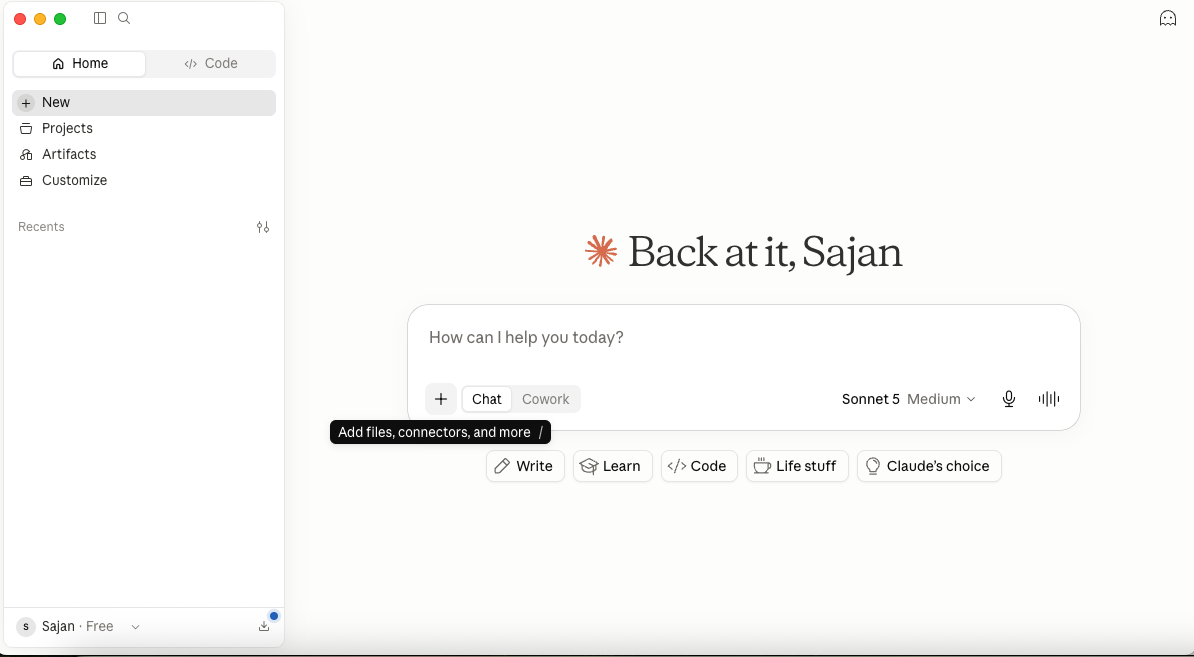
Click the + icon located below the chat input.
-
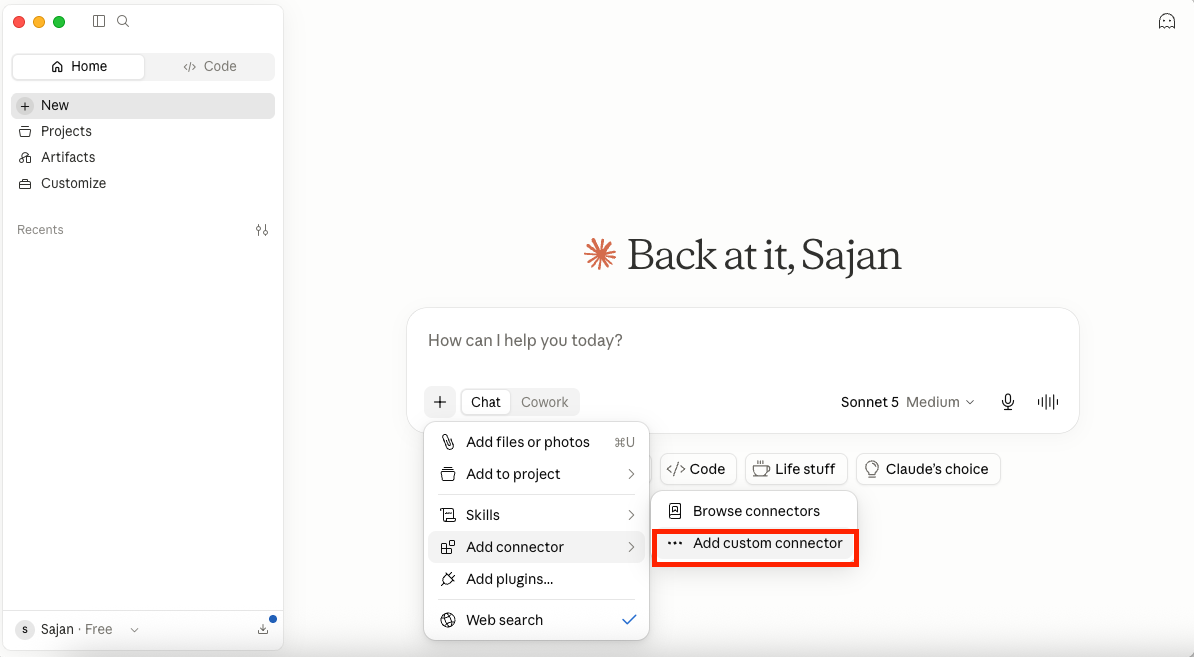
Select Add Connectors, then choose Add Custom Connector.
-
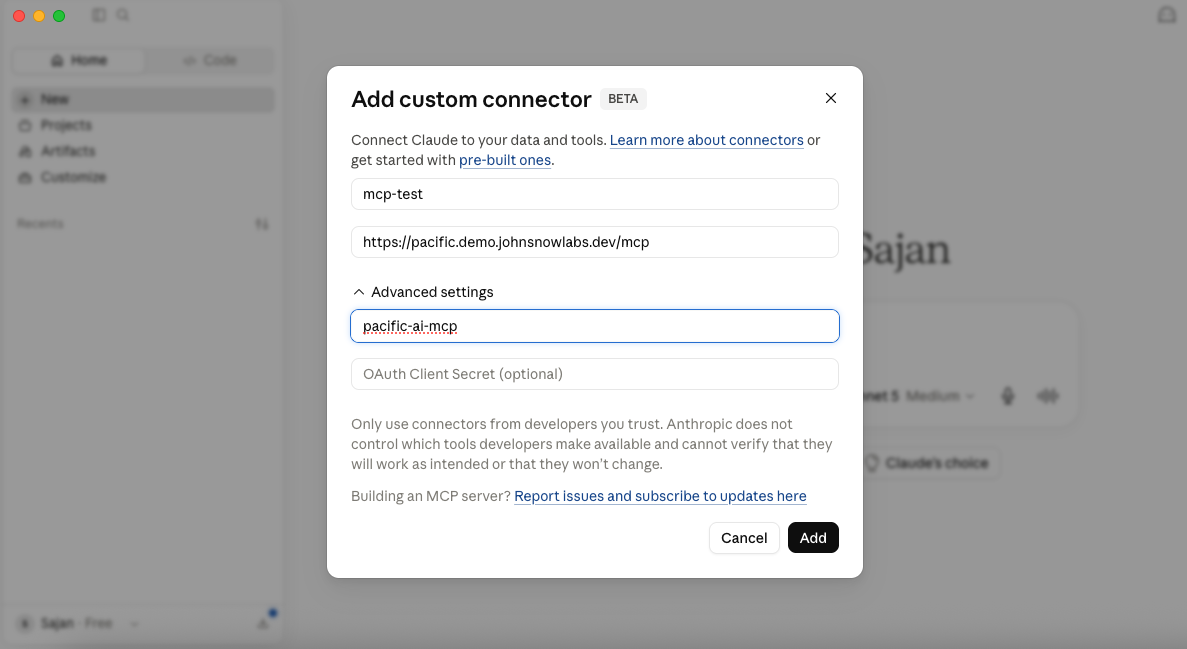
In the Add Custom Connector dialog, enter the following information:
- Name: A descriptive name for the connector (for example, Pacific AI MCP).
- URL: The Pacific AI MCP endpoint (for example,
https://<server-address>/mcp). - Client ID:
pacific-ai-mcp
-
Click Add.
-
When prompted, sign in using your Pacific AI credentials.
-
After authentication is complete, return to Claude Desktop.
The connector is now ready to communicate securely with Pacific AI. Users can begin interacting with Pacific AI directly from Claude Desktop to retrieve system information and execute supported MCP operations.
Using Pacific AI Through MCP
Section titled “Using Pacific AI Through MCP”After the connection has been established, users can interact with Pacific AI using natural language within their MCP client. For example, users can:
- List available AI systems
- Retrieve Model Cards
- Generate a System Risk Assessment
- Execute a Test Suite
- Query governance information
- Access other supported Pacific AI capabilities
All operations are executed within Pacific AI and are subject to the same permissions and access controls as the web application.
Example Workflow
Section titled “Example Workflow”The following example illustrates a typical MCP workflow:
- Configure the Pacific AI MCP connector in an MCP-compatible client such as Claude Desktop or Claude Code.
- Authenticate using your Pacific AI account.
- Open a conversation with the AI assistant.
- Request information or execute a supported Pacific AI operation, such as generating a System Risk Assessment or running a Test Suite.
- The MCP client securely communicates with Pacific AI, executes the requested operation, and returns the results to the conversation.
- All requests are logged and associated with the authenticated user for auditing purposes.