
Monitoring, Alerts, and Notifications
Pacific AI provides monitoring, alerting, and notification capabilities for scheduled Test Suite executions. These features allow users to continuously evaluate an AI system, identify evaluation results that require attention, and track notification events when configured alert conditions are met.
Monitoring, Alerts, and Notifications work together as follows:
- A Test Suite is configured as a scheduled Monitor for the active system.
- Pacific AI executes the Test Suite according to the configured monitoring schedule.
- Monitoring results are recorded for each execution.
- Alert Rules evaluate selected monitoring results against configured thresholds and conditions.
- When an alert condition is met, Pacific AI generates a notification that can be reviewed and managed from the Notifications page.
In short: Monitoring runs the tests, Alerts holds the rules, and Notifications lists what the rules caught. Notifications appear in the application only; nothing is sent by email.
Key Terms
Section titled “Key Terms”| Term | Meaning |
|---|---|
| Monitor | A Test Suite that runs automatically on a schedule (every hour, every 6 hours, daily, or weekly on Mondays). A monitor can be paused. In the form it is labeled Scheduled Test Run. |
| Run | One execution of a monitor (for example, Run #128). Each run produces scores. |
| Category / sub-category | How the Test Suite groups its checks. A category such as Safety contains sub-categories such as Toxicity. Each sub-category receives a score from 0% to 100% per run. Alerts work at the sub-category level. |
| Alert rule | A standing instruction to watch selected sub-categories of one monitor and generate a notification when they go wrong. A rule belongs to exactly one monitor. |
| Threshold | The value a score must not cross. It is 80% unless a different value is entered or a baseline sets it. |
| Breach | A sub-category on the wrong side of its threshold in one run. A failed evaluation also counts, but only if the rule allows it. |
| Baseline | A past run marked as “known good”. Its scores become the thresholds. |
| Severity | Critical or Warning. Set on the rule and optionally overridden per sub-category. |
| Notification | The record a rule creates when it decides to notify. At most one per rule per run. Also called an alert. |
| Streak | The number of consecutive runs in which the same sub-category must breach before a notification is generated. |
Monitoring
Section titled “Monitoring”The Monitoring page displays the Test Suites that have been configured as scheduled monitoring jobs for the active system. Users can create and configure monitoring schedules, manually trigger monitoring runs, review execution results, and manage existing monitors.
Create a Monitor
Section titled “Create a Monitor”Users can create a new scheduled monitor by clicking the + button on the Monitoring page.
When creating a monitor, users can configure the monitoring schedule and other required settings for the scheduled Test Suite execution. Configuration options include:
- Name of the Scheduled Run
- Test Suite
- Execution frequency
- Start and end dates
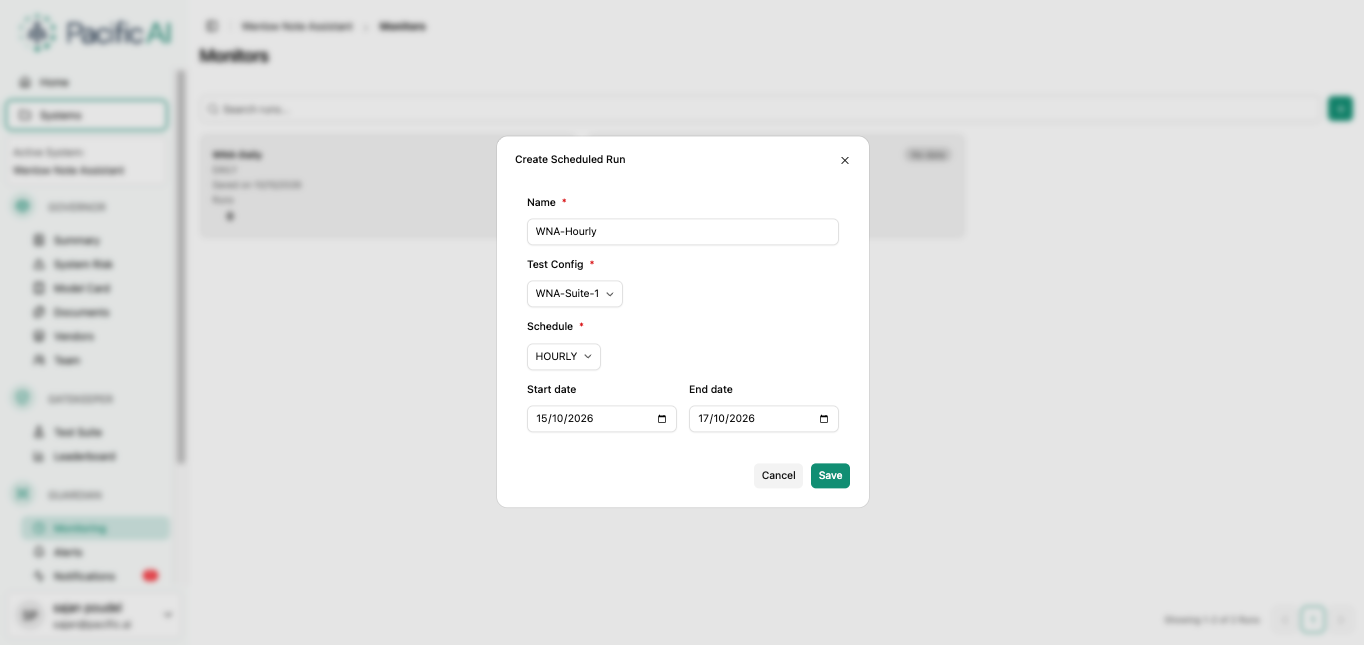
The configuration determines when Pacific AI automatically executes the selected Test Suite and evaluates the resulting scores.
View and Manage a Monitor
Section titled “View and Manage a Monitor”The Monitoring page displays scheduled monitors as individual tiles. Each tile contains the following information:
- Name
- Execution frequency
- Created Date
- Total Number of Runs
- Status
Clicking a scheduled monitor tile opens its detailed monitoring view. From this view, users can review the monitoring results and configuration associated with the selected monitor.
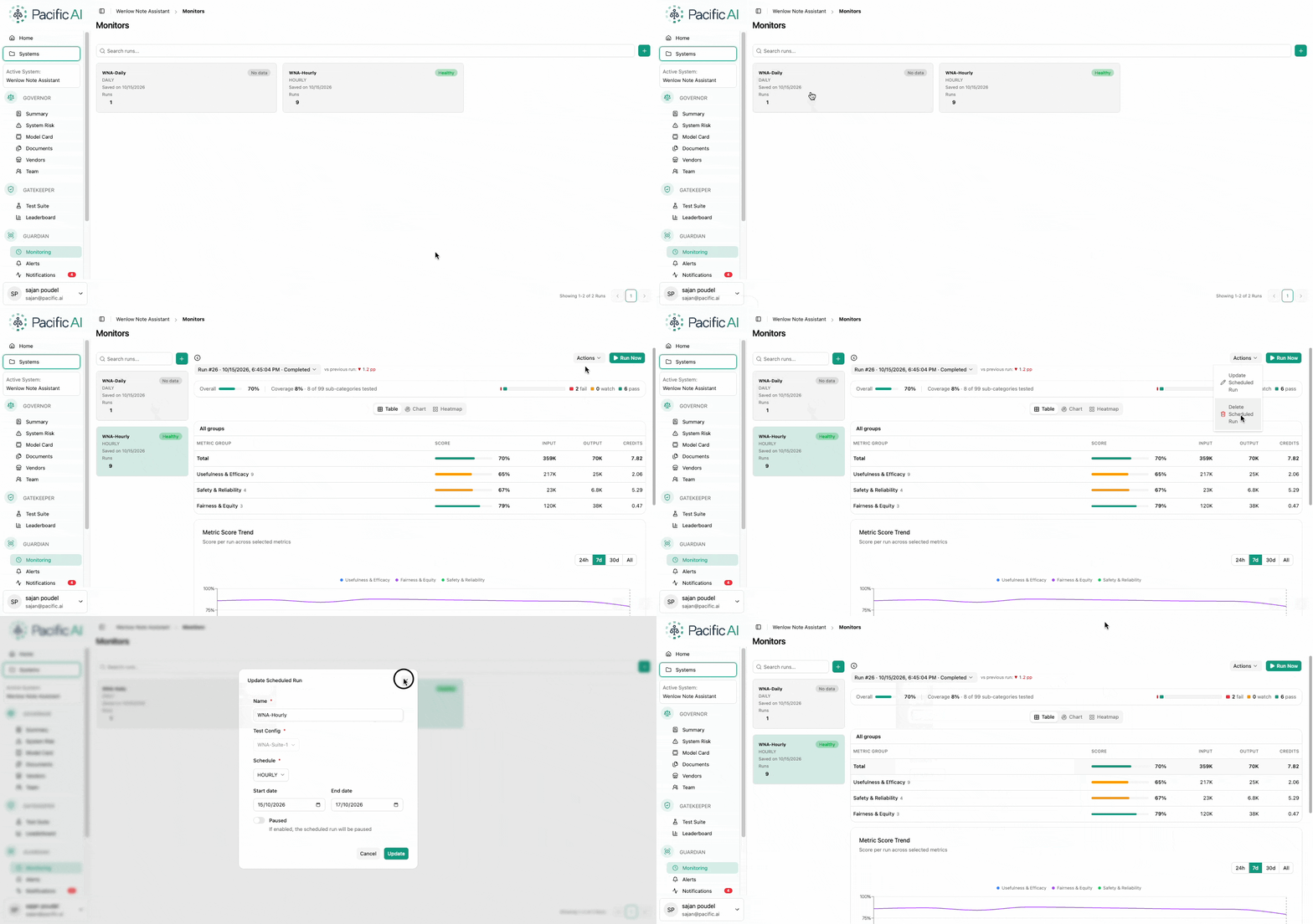
Users can use the Actions button to:
- View the monitor configuration
- Update the monitoring configuration. In addition to updating the fields that were used during configuration, users can pause the monitor while updating it.
- Delete the monitor
Users can manually trigger a monitoring execution without waiting for the next scheduled execution. Click Run Now for the selected monitor to start an immediate Test Suite execution. The resulting execution is added to the list of runs for that monitor and can be reviewed after the execution starts or completes.
View Monitoring Runs
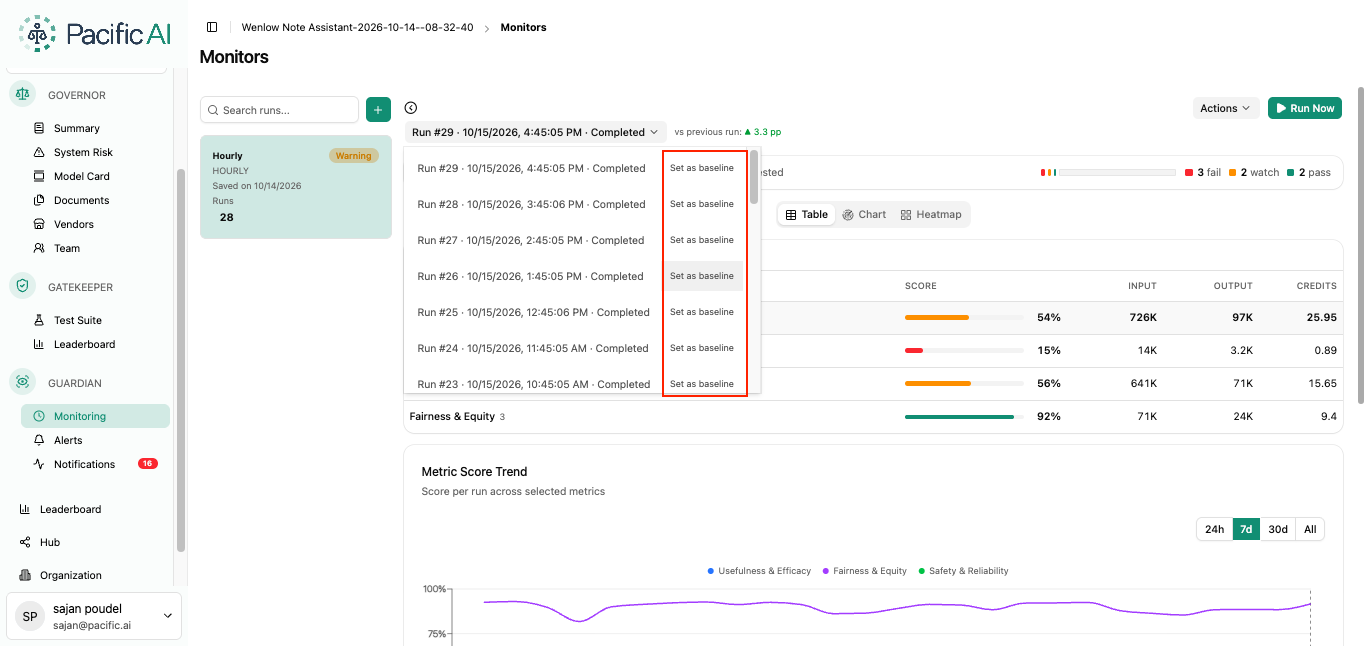
Section titled “View Monitoring Runs”The Monitoring page provides a list of runs for the selected monitor through a run-selection dropdown. The list provides information such as:
- Run date and time
- Run status
- Baseline status
A run can have one of the following statuses:
- Completed
- Running
- Failed
Users can select a completed run to review its monitoring results.
A completed run can be set as the baseline for alerts and notifications. The baseline provides a reference point for evaluating subsequent monitoring results against the configured alert conditions. To set a baseline, open the run picker on a monitor and choose Set as baseline next to a run. To remove it, choose Clear baseline.
- Only a completed run of that monitor that has scores can be chosen.
- A monitor has one baseline. It applies to every alert rule on that monitor.
- The run’s scores are copied at the moment it is chosen and do not change afterward.
- Setting or clearing a baseline affects the next run only. Past notifications are never recalculated.
- A test run that is the current baseline cannot be deleted until the baseline is cleared or replaced.
- Choosing a baseline is a monitor action, so it requires permission to edit monitors rather than alert rules.
View Monitoring Results
Section titled “View Monitoring Results”Monitoring results provide different ways to analyze the evaluation results from a selected run.
Users can view results in:
- Table: Displays detailed metrics and scores in a tabular format.
- Charts: Provides a visual representation of the monitoring results.
- Heatmap: Displays scores across the available metrics using a heatmap for easier comparison.
- Metric Score Trend: Displays how metric scores change across monitoring runs over time.
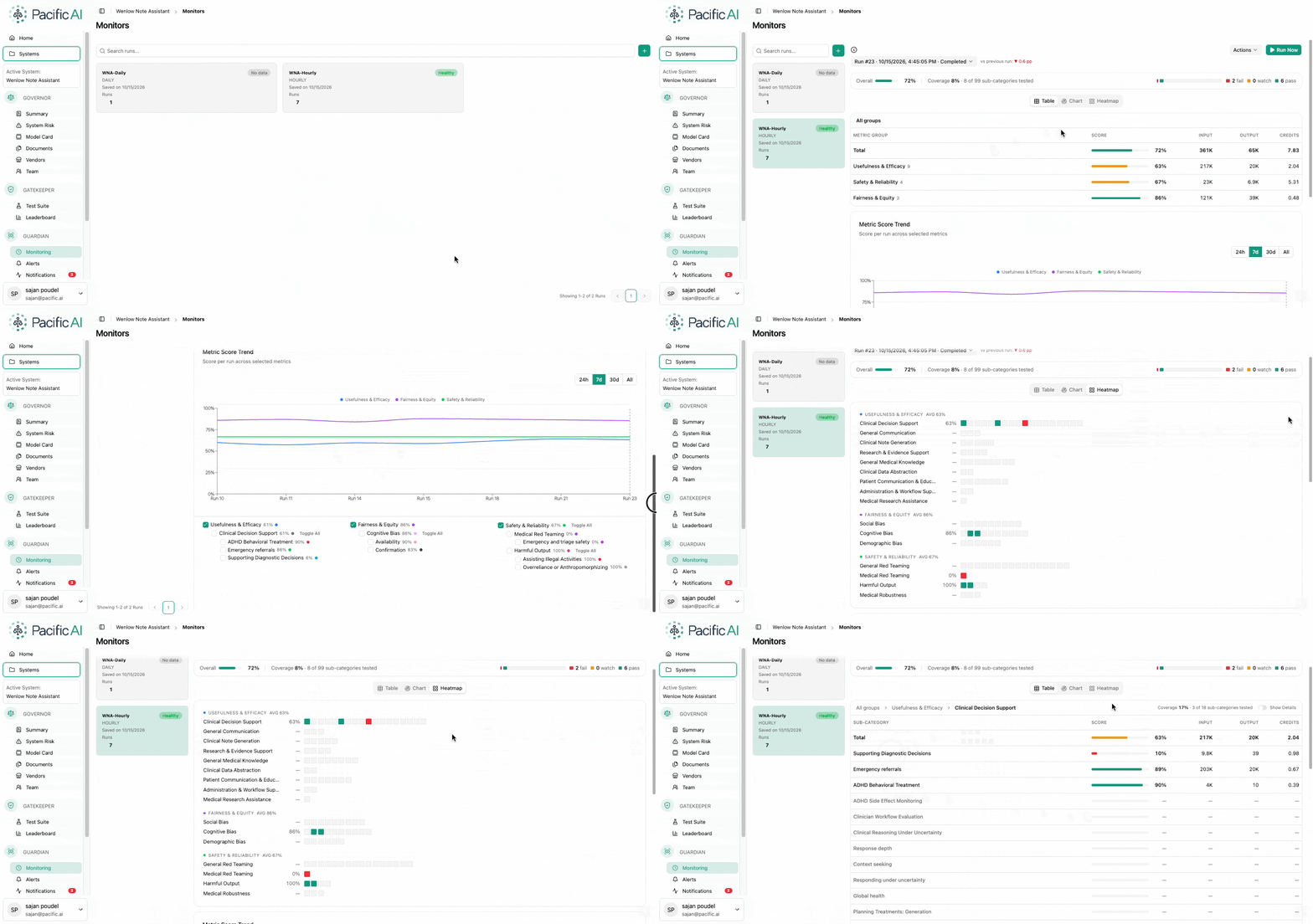
These views help users identify changes in evaluation scores, monitor performance trends, and determine whether the system continues to meet the expected evaluation criteria.
Monitoring Status Is Not an Alert
Section titled “Monitoring Status Is Not an Alert”Each monitor displays a status label of Healthy, Warning, or Drift detected. This label is independent of alert rules and never creates a notification. It compares the overall score of the two most recent scored runs and is evaluated in this order:
- Drift detected: the overall score dropped by 10 points or more, even if it is still high.
- Healthy: the overall score is 70% or more.
- Warning: otherwise.
With fewer than two scored runs, the status is No data.
| Monitoring status | Alert rules | |
|---|---|---|
| Looks at | One overall score per run | Each watched sub-category separately |
| Threshold | Fixed: 70%, and a 10-point drop | 80%, a custom value, or the baseline |
| Compares | Latest run against the previous run | Each run against its threshold, plus the streak |
| Creates notifications | Never | Yes |
| Configurable | No | Yes, per rule |
As a result, “Drift detected” without a notification is normal, and so is a Critical notification on a “Healthy” monitor. A single sub-category can fail badly while the overall average stays acceptable.
Alerts
Section titled “Alerts”The Alerts page is an independent page used to create and manage alert rules for scheduled monitoring jobs.
Alert rules define the conditions under which a notification should be generated when monitoring results breach configured thresholds.
How Alerts Are Evaluated
Section titled “How Alerts Are Evaluated”Alert rules are checked only when a scheduled monitor run finishes, not at its scheduled start time.
- The schedule fires. If the monitor is paused, no run occurs and nothing happens.
- The tests run. Pacific AI waits up to 2 hours for them to finish. If the test service cannot start the run, it retries for about 30 minutes. A run that never starts is ignored by alerts.
- The run finishes with a score for each sub-category.
- Every enabled rule on that monitor checks the results. Each check is recorded, including clean ones.
- A notification is created only if the rule’s conditions are met.
Runs started by hand from the Test Suite do not trigger alerts. Only scheduled monitor runs do.
Alert Rules
Section titled “Alert Rules”The Alert Rules section displays the alert rules configured for the active system. Each alert rule provides information such as:
- Rule name
- Monitor
- Watched sub-categories
- Severity
- Status
Non-default timing settings appear in grey under the rule name, such as “After 2 consecutive runs” or “Re-notifies every failing run”. Users can create a new alert rule by clicking + New Alert Rule or edit an existing alert rule from the three-dot menu.
The Alerts page also provides summary information about alert activity, including active critical and warning alerts and the number of enabled alert rules.
Create or Edit an Alert Rule
Section titled “Create or Edit an Alert Rule”When creating or editing an alert rule, users can configure the conditions that determine when a notification should be generated.
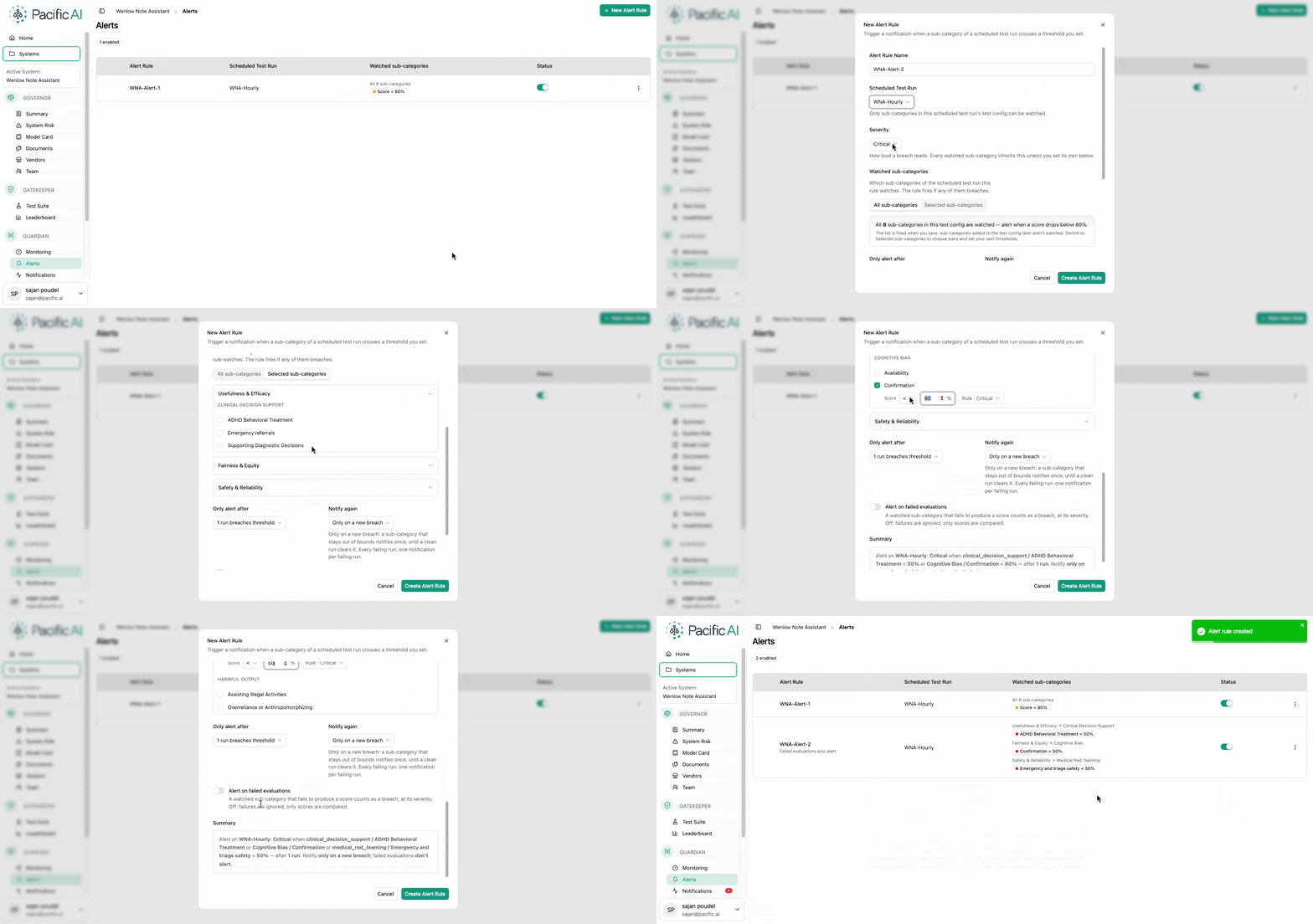
| Field | Description | Default |
|---|---|---|
| Alert Rule Name | Must be unique within its monitor. Rules on different monitors may share a name. | None |
| Scheduled Test Run | The monitor the rule watches. Read-only when editing; to watch a different monitor, create a new rule. | None |
| Severity | Critical or Warning, applied to every watched sub-category that does not set its own. | Critical |
| Watched sub-categories | All sub-categories watches every sub-category in the monitor’s test configuration, each with the condition < 80% (or the baseline). Selected sub-categories lets you tick specific ones and set, for each, a direction (< or >), a threshold, and a severity. | All sub-categories |
| Only alert after | 1, 2, or 3 runs. The same sub-category must breach in that many consecutive runs. | 1 run |
| Notify again | Only on a new breach: one notification per problem, until a clean run ends it. On every failing run: a notification on every run while the problem lasts. | Only on a new breach |
| Alert on failed evaluations | When on, a sub-category whose test errored and produced no score counts as a breach and appears as, for example, “Toxicity failed”. | Off |
Additional behavior:
- The available sub-categories are based on the tests configured in the selected monitor’s Test Suite. Users can only create alert rules for sub-categories that are available in the monitored Test Suite.
- With All sub-categories, the list is captured when the rule is saved. Sub-categories added to the monitor later are not watched until the rule is opened and saved again.
- Switching from Selected back to All discards custom values, and the form warns first.
- A Summary box at the bottom of the form restates the rule in plain language, for example: “Alert on Toxicity guard: Critical when any of all 12 sub-categories scores < 80%, after 1 run. Notify only on a new breach; failed evaluations don’t alert.” Review it before saving.
- Edits take effect from the next run.
How a Score Is Judged
Section titled “How a Score Is Judged”For each watched sub-category in each run, the rule places the result in one of three buckets:
- Skipped: the run has no result for that sub-category at all. This is never a breach. For Only alert after, it counts like a passing run and ends a streak.
- OK: the score is on the right side of the threshold.
- Breach: the score is on the wrong side of the threshold, or the evaluation failed and Alert on failed evaluations is on.
If a sub-category has several tests, its score is the average of the tests that succeeded.
The comparison is strict. With < 80%, a score of exactly 80% is OK.
| Direction | Alerts when | Typical use |
|---|---|---|
| Score < threshold | The score drops below the threshold | Metrics where higher is better |
| Score > threshold | The score rises above the threshold | Metrics where higher is worse |
Where the Threshold Comes From
Section titled “Where the Threshold Comes From”The threshold for each sub-category comes from the first of these that applies:
- The baseline score, if the monitor has a baseline run and that run scored this sub-category. A threshold typed into the rule is ignored.
- The typed percentage, if the rule uses Selected sub-categories and one was entered.
- 80%, the platform default.
For example, with Baseline Run #112, a Toxicity score of 88% is above 80% but still breaches because the baseline threshold is 91%. Robustness was not scored in the baseline run, so it falls back to 80%.
In the rule form, a baseline threshold appears as a locked badge, such as “91% · baseline Run #112”.
When a Breach Becomes a Notification
Section titled “When a Breach Becomes a Notification”A breach is not automatically a notification. Two settings decide: Only alert after (how long the streak must be) and Notify again (whether an ongoing problem notifies again).
Streak rules:
- Streaks are tracked per sub-category. Toxicity breaching in run 1 and Bias breaching in run 2 is not a streak of 2.
- Runs the rule did not check count as clean. This includes runs while the rule was switched off, runs while the monitor was paused, and runs from before the rule existed. A new rule set to “after 3 runs” cannot notify before its third checked run.
- A run that never started is skipped. It neither extends nor breaks a streak.
- A rule creates one notification per run. It lists every sub-category that notifies in that run, and its severity is the worst among them. If any is Critical, the whole notification is Critical.
- The notification lists only the sub-categories that notify. A sub-category still building its streak, or already reported under Only on a new breach, is recorded but not listed.
Enable or Disable an Alert Rule
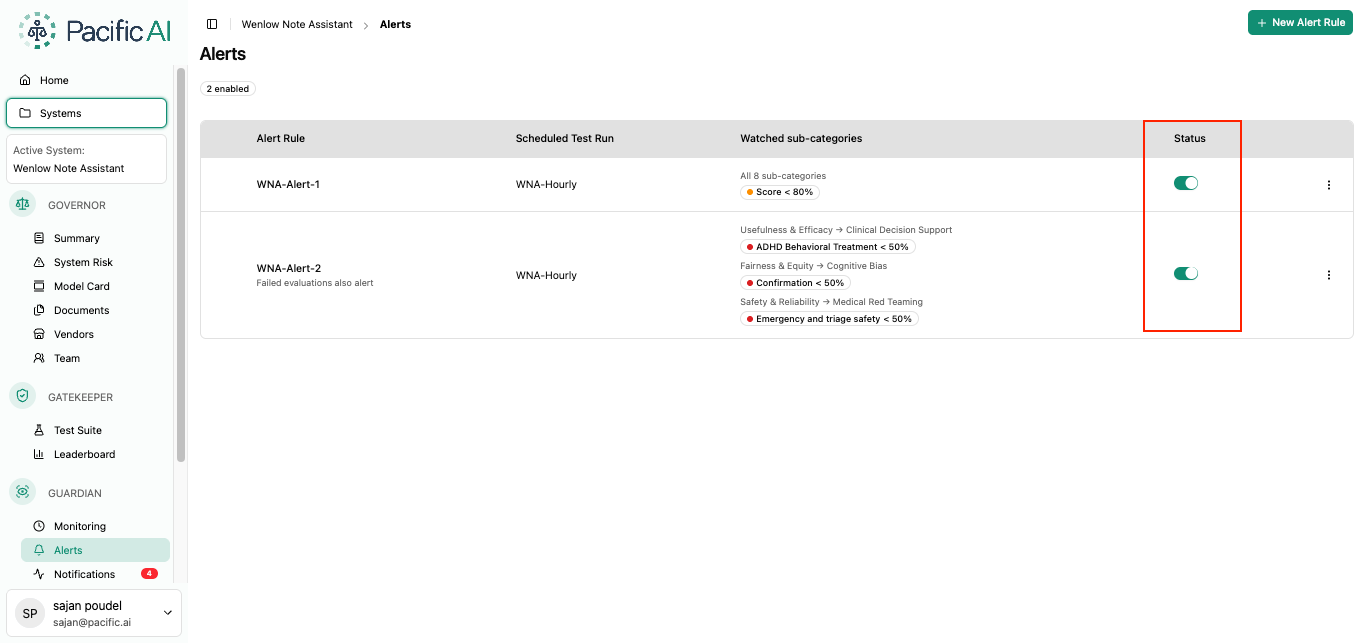
Section titled “Enable or Disable an Alert Rule”Alert rules can be enabled or disabled from the Status column on the Alerts page. Users can change the status of an existing alert rule without deleting the rule. Disabling an alert rule prevents it from generating new notifications until it is enabled again. Runs that occur while a rule is disabled count as clean for streaks when the rule is re-enabled.
Notifications
Section titled “Notifications”The Notifications page is an independent page that provides a record of notifications generated when monitoring results meet configured alert conditions.
Each notification represents an alert event generated from a scheduled monitoring run.
Notification Information
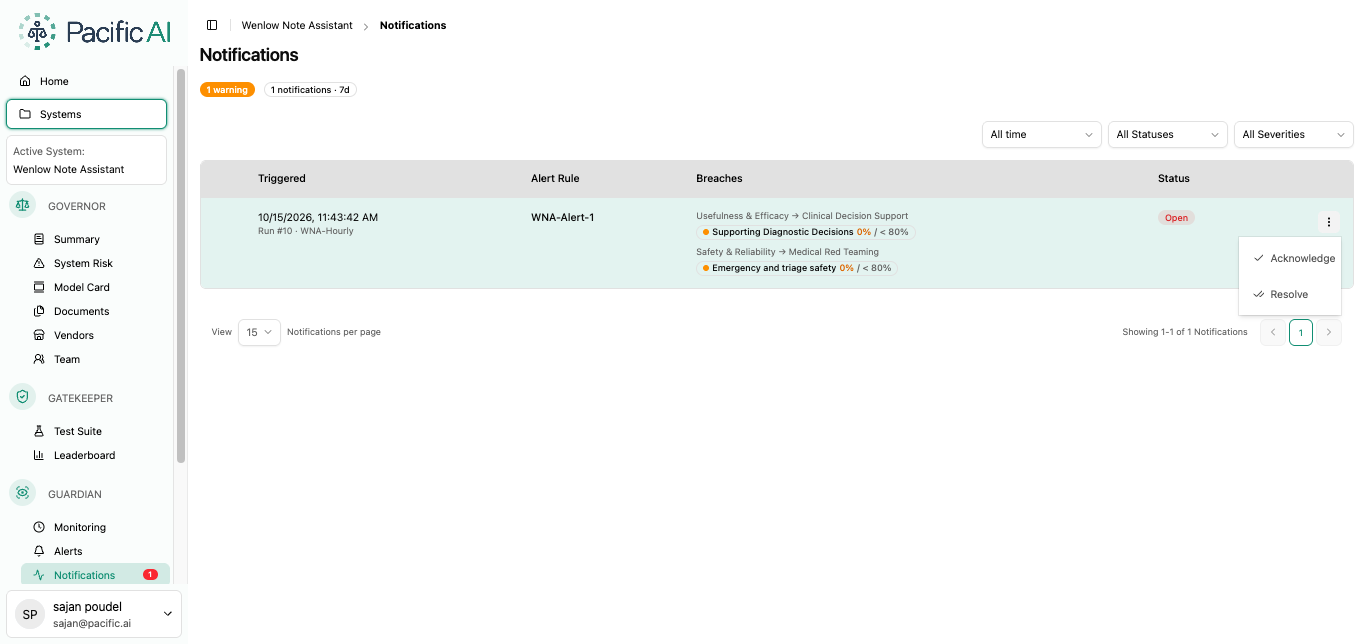
Section titled “Notification Information”The Notifications page displays information about each notification, including:
- Triggered: Displays the date and time when the scheduled monitoring run that triggered the notification was executed, along with the associated monitor name.
- Alert Rule: Displays the alert rule that generated the notification.
- Breaches: Displays the alert conditions breached during the monitoring run, including the applicable sub-categories, thresholds, and actual scores. A failed evaluation is shown as “failed” with no percentage. Each sub-category is colored by its own severity.
- Status: Displays the current status of the notification.
Users can filter the list by date range, status, and severity. The list shows 15 notifications per page, newest first.
Notification Status
Section titled “Notification Status”A notification can have one of the following statuses:
- Open
- Acknowledged
- Resolved
All newly generated notifications have an Open status, with one exception described under Resolving While the Problem Persists.
Manage Notifications
Section titled “Manage Notifications”Users can manage an open notification using the three-dot menu associated with the notification.
Available actions include:
- Acknowledge: Changes the notification status from Open to Acknowledged. Use this to indicate the notification has been seen and is being addressed.
- Resolve: Changes the notification status to Resolved. Resolve can be used directly from Open; acknowledging first is optional.
Resolved is final, and the three-dot menu is no longer shown. Acting on an already resolved notification (for example, two people acting at once) returns an error.
Neither action re-runs a test or changes a score. They only change the notification’s status. This allows users to track the progress of alert events from initial identification through acknowledgement and resolution.
Resolving While the Problem Persists
Section titled “Resolving While the Problem Persists”If a user resolves the latest notification while the sub-category is still failing, the system assumes the user is aware of the problem and suppresses repeat alerts. Subsequent failing runs still create notifications for the record, but they are created already Resolved. This mainly affects rules set to On every failing run.
The suppression ends when either of the following happens:
- A run completes with no notification (a clean run).
- A different sub-category breaches. That notification opens normally.
Resolving an older notification, rather than the latest one, does not suppress anything.
What the Counters Show
Section titled “What the Counters Show”| Counter | What it counts |
|---|---|
| Critical badge | Open notifications with Critical severity |
| Warning badge | Open notifications with Warning severity |
| Sidebar number | All Open notifications. Acknowledged and resolved are not counted. |
| N · 7d | Every notification created in the last 7 days, in any status, including those created already Resolved |
| N enabled (Alerts page) | Alert rules that are switched on |
For example, if 3 notifications are open and one is acknowledged, the sidebar number and the critical/warning total drop to 2, while the 7-day count stays the same.
Permissions
Section titled “Permissions”Two checks apply: the user’s organization role and their access to the system as a system member. Both must allow the action.
| Organization role | View rules and notifications | Create, edit, delete rules; acknowledge; resolve |
|---|---|---|
| Governance Officer | Any system | Any system |
| Risk Manager | Systems they belong to | If their system access is Administrator, Compliance Officer, Risk Manager, or Developer |
| Developer | Systems they belong to | Same as Risk Manager |
| Auditor | Any system | No |
| Member | Systems they belong to | No |
Without edit rights, the three-dot menus are hidden and the rule enable/disable switch has no effect.
Monitor and Alert Dependencies
Section titled “Monitor and Alert Dependencies”Alerts are associated with a specific monitoring job. Because alert rules depend on the monitor and its Test Suite configuration, changes to a monitor or its underlying Test Suite can affect the associated alert rules.
Deleting an Alert Rule
Section titled “Deleting an Alert Rule”Deleting an alert rule also deletes its entire notification history. The confirmation message states this.
Deleting a Monitor
Section titled “Deleting a Monitor”If a monitor has associated alert rules, deleting the monitor also deletes its associated alerts and their notifications.
Before deleting the monitor, Pacific AI displays a confirmation message:
You are about to delete a monitor. This action will also delete any associated alerts. Would you like to continue? Yes/No
A second confirmation then lists the affected rules and the number of notifications that will be removed. Users must confirm both prompts before the monitor and its associated alerts are deleted.
Updating a Monitored Test Suite
Section titled “Updating a Monitored Test Suite”Alert rules are based on the tests and sub-categories available in the Test Suite configured for the monitor.
When the monitored Test Suite is updated:
- Adding new tests or sub-categories does not automatically create new alert rules. Rules set to All sub-categories do not watch new sub-categories until the rule is opened and saved again.
- Removing tests or sub-categories from the monitor’s configuration first displays a warning if Selected sub-categories rules watch them. On confirmation, the removed sub-categories are taken out of those rules, and any rule left with nothing to watch is deleted.
- Rules set to All sub-categories are not changed. The removed sub-categories simply stop reporting and are skipped.
Users should review the existing alert rules after modifying a Test Suite that is configured as a monitor to ensure that the alert configuration continues to meet their monitoring requirements.
Other Changes
Section titled “Other Changes”- Edit a rule: takes effect from the next run. The monitor assigned to a rule cannot be changed.
- Change or clear the baseline: takes effect from the next run, for every rule on that monitor.
- Change a threshold: nothing is recalculated. Existing notifications are not updated.
Troubleshooting: Why Didn’t It Alert?
Section titled “Troubleshooting: Why Didn’t It Alert?”Work through this list in order:
- Was it a scheduled run? Runs started by hand never trigger alerts.
- Has the run finished? Rules are checked after completion, which can be up to 2 hours after the scheduled time.
- Is the monitor running and the rule enabled? A paused monitor produces no runs, and a disabled rule is not checked.
- Does the rule watch that monitor and sub-category? With All sub-categories, the list was captured when the rule was saved. Re-save the rule to pick up new ones.
- Is the score really past the threshold? Check for a baseline, which replaces any typed value. Check the direction (
<or>). A score exactly on the threshold is OK. - Is the streak complete? With “Only alert after 2 runs”, the same sub-category needs 2 breaching runs in a row. Runs before the rule existed, or while it was off, count as clean.
- Was it already reported? Under Only on a new breach, an ongoing problem notifies once and needs a clean run before it can notify again.
- Did the run report that sub-category? If it has no result at all, it is skipped.
- Did the evaluation fail instead of producing a score? That counts only when Alert on failed evaluations is on.
- Is the notification there but already Resolved? Resolving the previous notification while the problem persisted suppresses repeats. Set the status filter to All Statuses.
- Are page filters hiding it? Check the date range, status, and severity filters on the Notifications page.
Expected Behavior
Section titled “Expected Behavior”The following behaviors may look like errors but are working as designed.
| What you see | Why |
|---|---|
| A new notification that is already Resolved | The previous notification was resolved while the problem persisted. See Resolving While the Problem Persists. |
| An 88% score triggered a rule with an 80% threshold | A baseline is set, and its score (for example 91%) is the actual threshold. |
| The threshold typed into a rule is ignored | A baseline covers that sub-category. The form shows a lock badge. |
| Critical/Warning counts went down but nothing was fixed | Someone acknowledged notifications. The counts include only Open notifications. |
| Monitor shows Healthy, but a Critical notification exists | Monitoring status and alert rules are independent. See Monitoring Status Is Not an Alert. |
| Three sub-categories failed, but the notification lists one | The others are still building their streak, or were already reported under Only on a new breach. |
| A breach shows “failed” with no percentage | The evaluation errored and Alert on failed evaluations is on. |
| Changed the threshold, but old notifications did not change | Nothing is recalculated. Changes apply from the next run. |
| A Warning-severity rule produced a Critical notification | A watched sub-category has its own Critical severity. The notification takes the worst one. |
| A rule disappeared after the monitor’s tests were edited | All of its selected sub-categories were removed from the test configuration, so the rule had nothing left to watch. |