
User Management
Pacific AI includes a structured user management framework that supports role-based access control across the application and individual systems. User management is available under Settings → Users & Roles and is primarily handled by users with Admin privileges.
Administrators are responsible for maintaining user access, assigning appropriate roles, and ensuring separation of duties across governance workflows.
Managing Users
Section titled “Managing Users”Immediately after deployment in your environment, access to the Pacific AI application is restricted to a single user account. This account is designated as the Admin user by your organization.
The Admin is responsible for managing application-level access. Based on your organization’s internal policies, the Admin can create additional user accounts and assign appropriate roles, or defer role assignment to a later stage if needed.
All created users can log into the application; however, access to specific features and data is determined by the role assigned to their account. A user whose role has not yet been assigned is classified as a Member. Members can access the application by logging in, but their view is limited to the organization’s Profile page until a specific role is assigned.
The Users & Roles page provides a centralized view of all registered accounts within the organization. The user table displays username, first name, last name, email address, and assigned roles.
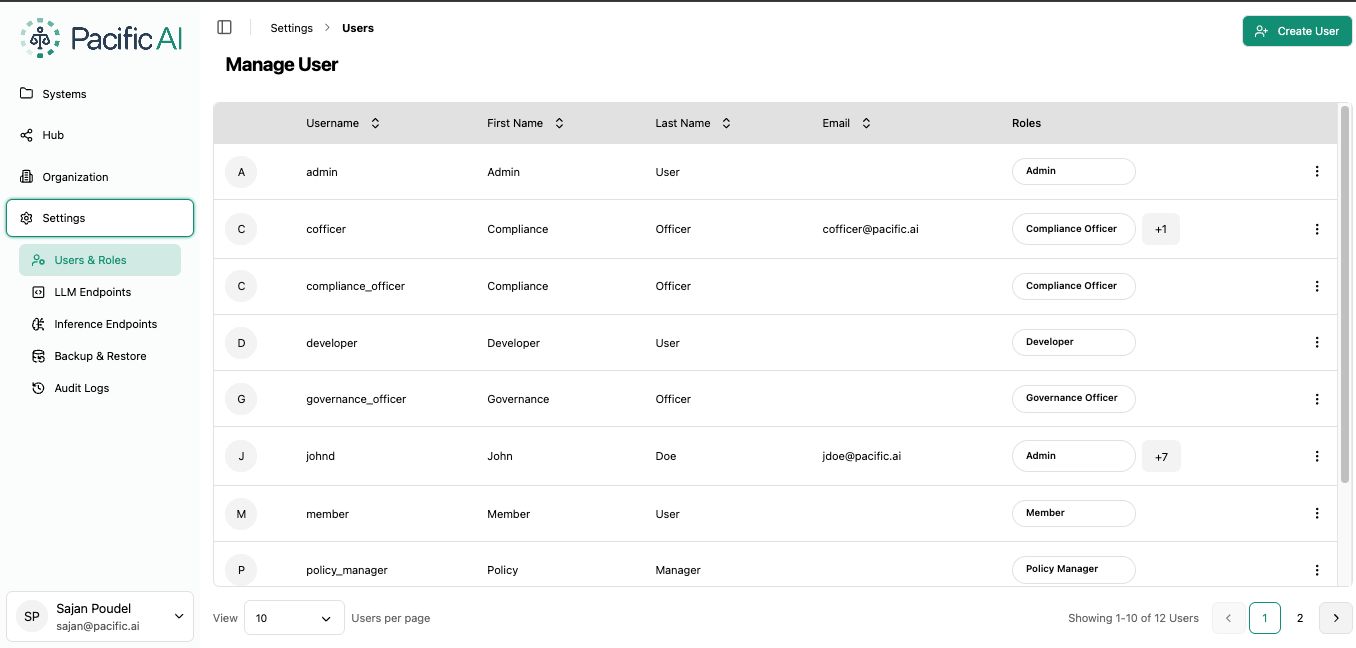
From this page, an Admin can:
- Create new user accounts
- Edit user information
- Reset passwords
- Assign or update roles
- Deactivate user accounts
When deleting a user, administrators can transfer ownership of associated resources to maintain continuity.
User Details
Section titled “User Details”Each user profile contains mandatory basic information, including first name, last name, and email address.
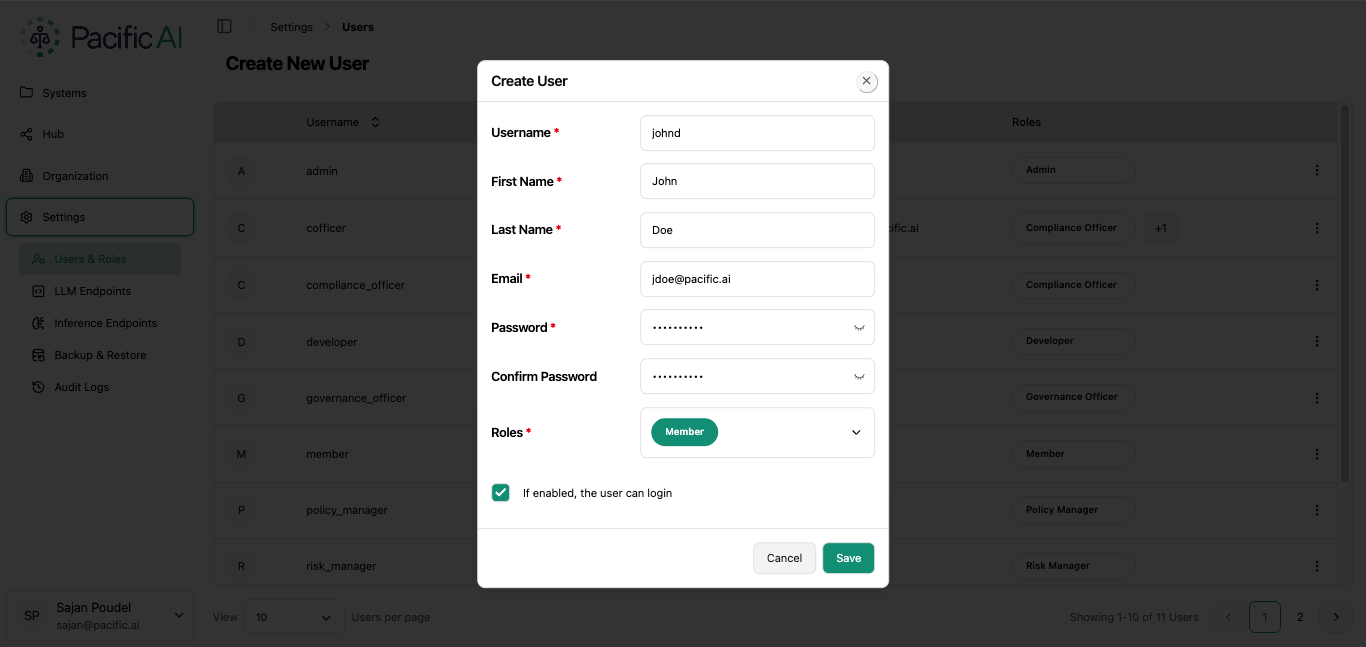
These details can be updated by users with Admin privileges. Maintaining accurate user records ensures accountability.
System-Level Roles
Section titled “System-Level Roles”In addition to application-wide permissions, users must be assigned roles within individual systems. System-level roles determine what actions a user can perform inside a specific AI system.
Once a system is created, a team can be assigned to manage and operate it.
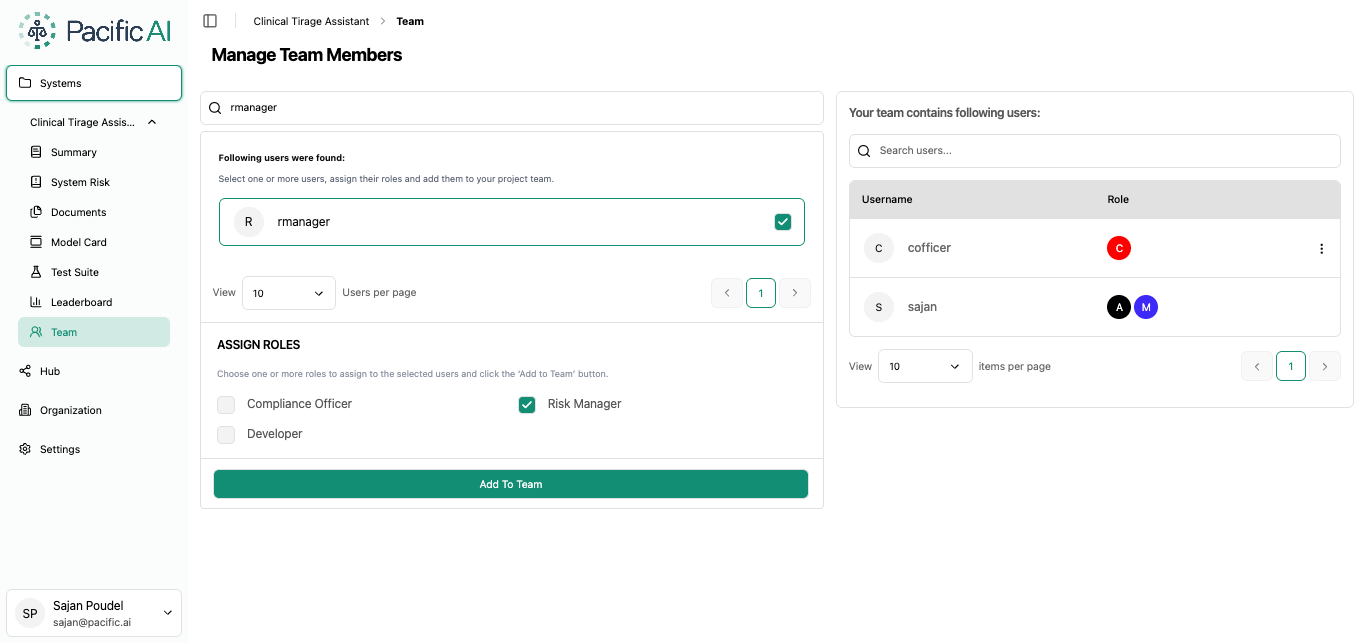
Risk Manager
Section titled “Risk Manager”Responsible for operational management of the system. This role can create and edit systems, upload and manage system documents, generate Model Cards, initiate and manage Risk Assessments, and create, edit, and delete Test Suites and Test Runs.
Compliance Officer
Section titled “Compliance Officer”Responsible for oversight and governance decisions within a system. This role can review and approve or reject Risk Assessments, set Lifecycle Stage and Risk Level, and view Organization profile information.
Developer
Section titled “Developer”Focused on technical evaluation and testing activities. This role can view system details and documents, and create and manage Test Suites and Test Runs.
Application-Level Roles
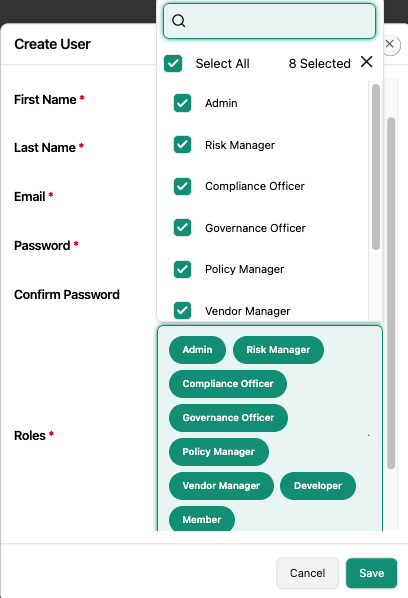
Section titled “Application-Level Roles”Application-level roles define permissions across the entire Pacific AI platform. These roles control access to governance settings, policies, vendor management, and system configuration.
By default, new users are assigned the Member role, which provides limited access. A single user can also be assigned multiple roles.
1. Admin
Section titled “1. Admin”Manages platform configuration and user administration. Responsibilities include creating and updating user roles, deactivating users and transferring resources, managing system settings (Backup and Restore), and configuring LLM Endpoints. The Admin does not manage the Organization profile, approve policies, or create/edit systems. This role is required during initial platform setup.
2. Member
Section titled “2. Member”The default role assigned to new users. Members have view-only access to the Organization profile and limited platform capabilities.
3. Governance Officer
Section titled “3. Governance Officer”Oversees policy and organizational governance activities. This role can view and edit all systems, approve or reject policies submitted by the Policy Manager, manage the Organization profile, access the Policies and Vendors pages, and update user roles.
4. Policy Manager
Section titled “4. Policy Manager”Responsible for policy creation and submission. This role can create and edit policies, submit policies to the Governance Officer for approval, and view the Organization profile.
5. Vendor Manager
Section titled “5. Vendor Manager”Manages third-party vendor information. This role can create and edit vendors and view the Organization profile.
6. Compliance Officer
Section titled “6. Compliance Officer”Provides governance oversight across systems. This role can set Lifecycle Stage and Risk Level and view the Organization profile.
7. Risk Manager
Section titled “7. Risk Manager”Manages AI systems operationally. This role can create and edit systems, upload documents, generate Model Cards, and manage Test Suites and Test Runs.
8. Developer
Section titled “8. Developer”Supports testing and evaluation workflows. This role can create and manage Test Suites and Test Runs.
Pacific AI’s role-based access control model ensures accountability, clear responsibility boundaries, and compliance with governance best practices.